The GtDio6x includes a virtual panel program, which provides full access to the various configuration settings and operating modes. This sectiom provides reference to the Virtual Panel controls when using it with the GX5296. To fully understand the front panel operation, it is best to become familiar with the functionality of the board. You may also refer to Using the Virtual Panel for common procedures using the panel.
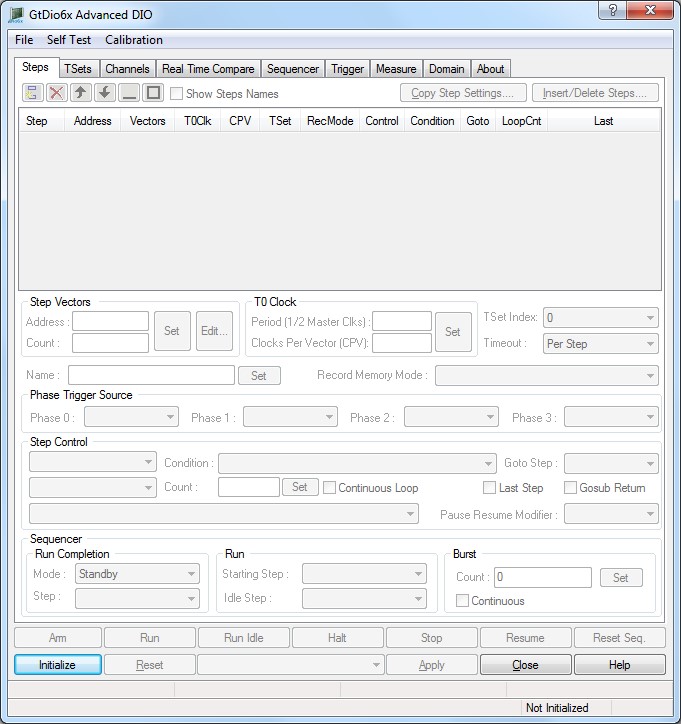
To open the virtual panel application, select GtDio6x Panel from the Marvin Test Solutions, GtDio6x menu under the Windows Start menu. The GtDio6x virtual panel dialog window opens as shown here:
Virtual Panel not Initialized
The GtDio6x virtual panel dialog window after it was initialized is shown here:
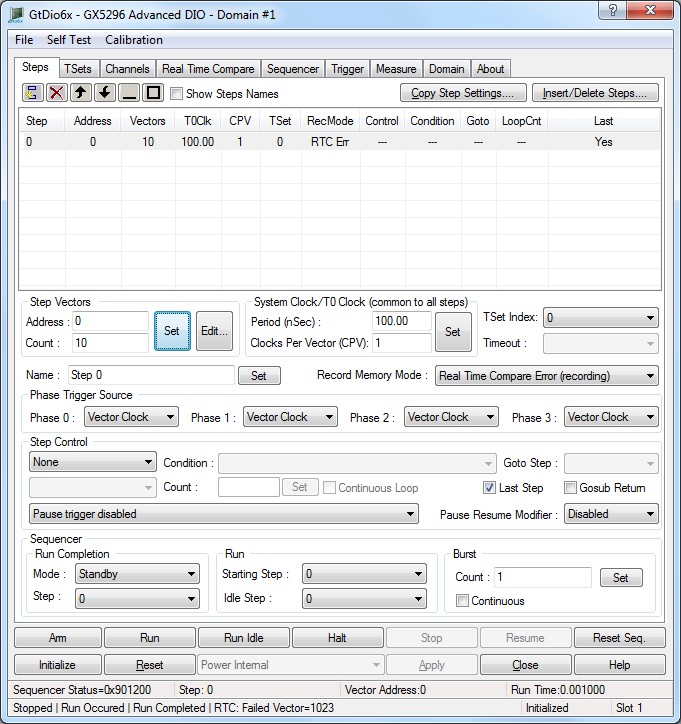
Virtual Panel initialized
The dialog is divided to tabs/pages each tab display. Each page displays controls that are relevant to the selected tab. The top menu and bottom buttons of the panel are common for all tabs and contain the following controls:
File, Load… menu command: Opens a GtDio6x configuration file. This will load the currently initialized domain with the settings and data found within the configuration file.
File, Save… menu command: Saves a GtDio6x configuration file. This will save the contents of the domain to a configuration file.
File, Import… menu command: Opens the DIOEasy-FIT dialog which supports importing of WGL/STIL/VCD/eVCD and ATP file types, which are converted to a GtDio6x format. See mporting External Vector Files for more information.
Self-Test, Memory menu command: Perform self-test on on-board internal memories.
Self-Test, I/O menu command: Perform self-test on pin electronics.
Calibration, Timing Deskew menu command: Deskews the card-to-card timing skew within a DIO domain.
Arm button: Arms the sequencer for external triggering.
Run button: Execute a burst starting with the sequence step number entered in the Step edit box.
Halt button: Places the sequencer into halt state. The sequencer can be resumed by clicking on the Resume button.
Stop button: Stops the currently running burst and enters the idle or standby sequence depending on what was set in the Finish Sequence group box.
Resume button: Resume the sequencer execution when the sequencer state is paused or halted.
Reset Seq button: Perform a sequencer reset. This will reset the sequencer logic but will not affect other Domain or Board settings.’
Initialize button: Initialize the Domain as defined in the Domain page. The current settings of the selected Domain will not change after calling initialize.
Reset Button: Resets all the Domain settings to their default state. This does not affect the vector data memory.
Apply button: Not Applicable.
Close button: Closes the panel. Closing the panel does not affect the Domain settings.
Help button: Opens the on-line help window. In addition to the help menu, the caption shows a What’s This Help button (?) button. This button can be used to obtain help on any control that is displayed in the panel window. To display the What’s This Help information, click on the (?) button and then click on the control – a small window will display the information regarding this control.
Sequencer Status edit box: Displays the Sequencer Hex Status value.
Relevant API functions: GtDio6xSequencerGetStatus.
Step Text Field: Displays the current Step being run.
Relevant API functions: GtDio6xSequencerGetProgramCounter.
Vector Address Text Field: Displays the current Vector being run.
Relevant API functions: GtDio6xSequencerGetProgramCounter.
Run Time edit box: Displays the execution time of the latest sequence run
Relevant API functions: GtDio6xSequencerGetRunElapsedTime.