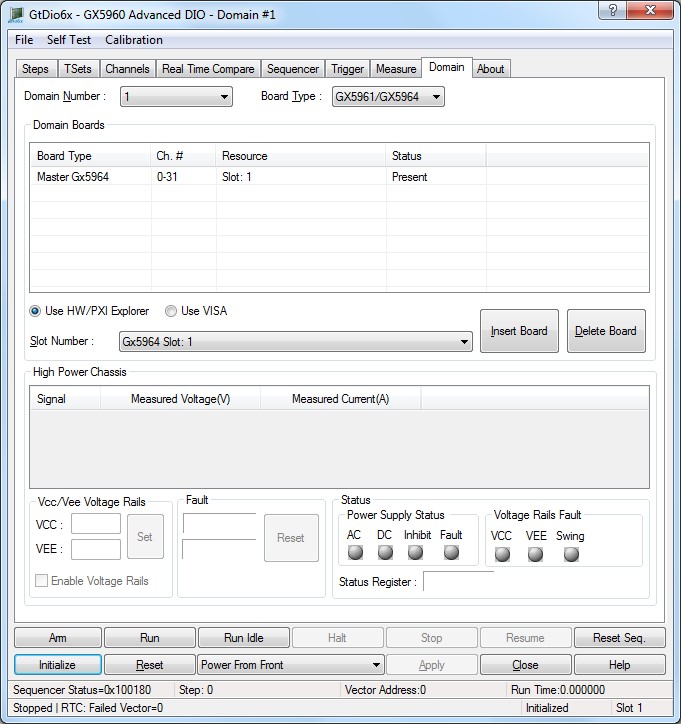
The panel Domain tab is used to display and configure the DIO domain boards. Each domain is defined with a master board and slave board that physically reside in adjacent PXI slots as shown here:
Virtual Panel – Domain page
The following controls are shown in the Domain page:
Domain configuration list: displays all the DIO boards in the domain selected by the Master Number drop list box. The first board listed is always the master board and subsequent boards are slave boards. All boards in the domain must be in continuous slots within the chassis.
● Board Type: The model number, GX5961 or GX5964, of the DIO board and the Master/Slave designation.
● Ch#: The range of I/O channels contained within the DIO board.
● Slot: The chassis slot number of the DIO board. The slot number can be viewed and set using the HW PCI/PXI Explorer application.
● Status: Displays “Present” if a DIO board is found in the listed slot number and “Not Present” if not.
Master Number drop list box: Sets/displays the current master domain configuration. The number of different master domain configuration is 1 to 16.
Boards drop list box: This displays all DIO boards found in the chassis.
Insert button: Add the board selected in the Boards Combo Box to the domain selected in the Domain drop list box.
Delete button: Deletes the board selected in the Domain List. If the master is deleted, all boards in the domain will be deleted.
To clear existing domain, select the first board in the list and click on Delete.
Note: The Slot Number drop list shows the currently installed boards matching the board type.
The user should insert the boards in the following order:
Master board will be the first in the list, but also should be the board in the middle of the domain in order to balance timing.
E.g. if we have 5 GX5960 boards residing in slots 10,11, and 12, then the configuration should be as follows:
Slot |
Board Type |
10 |
Master |
11 |
Slave 1 |
12 |
Slave 2 |
The Initialize dialog initializes the driver for the selected domain. The domain settings will not change after initializing. Once initialized, the panel will reflect the current settings of the DIO boards.
The Initialize dialog supports two different device drivers that can be used to access and control the board:
1. Use HW/PXI Explorer – this is the device driver installed by the setup program and is the default driver. When selected, the Slot Number list displays the available GX5960 boards installed in the system and their slots.
2. Use VISA – this is a third-party device driver usually provided by National Instrument (NI-VISA). When selected, the Resource list displays the available boards installed in the system and their VISA resource address. The chassis, slots, devices and their resources are also displayed by the VISA resource manager, Measurement & Automation (NI-MAX) and in Marvin Test Solutions PXI/PCI Explorer.
After the domain was configured, the Initialize button should be clicked to begin the initialization process. The panel always uses the GtDio6xInitialize function.
The GX5960 domain can be initialized in one of two ways from the API. The domain, as described in the GtDio6x.ini file, can be initialized using one function call or each card in the domain can be initialized individually. If each card is initialized individually, the backplane timing calibration function must be called after the last card in the domain has been initialized.
Relevant API functions:
● GtDio6xInitialize – Used to initialize the entire domain as described in the GtDio6x.ini file (configured in the Domain tab of the panel). The timing calibration is done automatically by the driver calling GtDio6xCalibrateDomainTimingDeskew.
● GtDio6xSetupInitialization – Used to initialize each board in the domain individually. The Master board is initialized first followed by slave boards. Subsequent calls to this function should be for boards which are adjacent to previously initialized boards.
● GtDio6xCalibrateDomainTimingDeskew – Used to calibrate the domain-wide timing signals when using the GtDio6xSetupInitialization function. This should be called after the last card in the domain is initialized using GtDio6xSetupInitialization.
The controls in this group box are only active when one of the GX5960 DIO boards in the domain is a power supply master controller and the domain is installed in a high-powered chassis.
The Marvin Test Solutions Gx7015A and Gx7005A high-powered chassis include a built in, user programmable power supply system. They use a special backplane to deliver high-power to the GX5960 pin electronics via the J5 PXI connector. The power supply is made up of two VCC high rail modules, one VEE low rail module, and one VDD module.
The GX5960 DIO is capable of controlling these modules by setting their voltages, and monitoring their voltage and current output.
List Control:
Displays the power supply’s measured VCC1, VCC2, VEE and VDD voltages and currents.
Vcc/Vee Voltage Rails group box:
State drop list box: Sets/Displays the power supply Vcc and Vee voltage rails state.
● Disable: The power supply VCC and VEE modules are disabled.
● Enable: The power supply VCC and VEE modules are enabled.
VCC edit box: Sets/Displays the VCC voltage to set. VCC must not exceed +28V and must not be less than 10V. The maximum voltage swing between VCC and VEE must be less than 33.5 V.
VCC Set button: Applies the voltage value entered in the VCC edit box to the power supply.
VEE edit box: Sets/Displays the VEE voltage to set. VEE must not exceed 18V and must not be less than 3V. The maximum voltage swing between VCC and VEE must be less than 33.5 V.
VEE Set button: Applies the voltage value entered in the VEE edit box to the power supply.
Reset Fault button:
Resets the power supply fault condition, disconnects all GX5960, and set both VCC and VEE power supply voltage rails voltage to 12V.