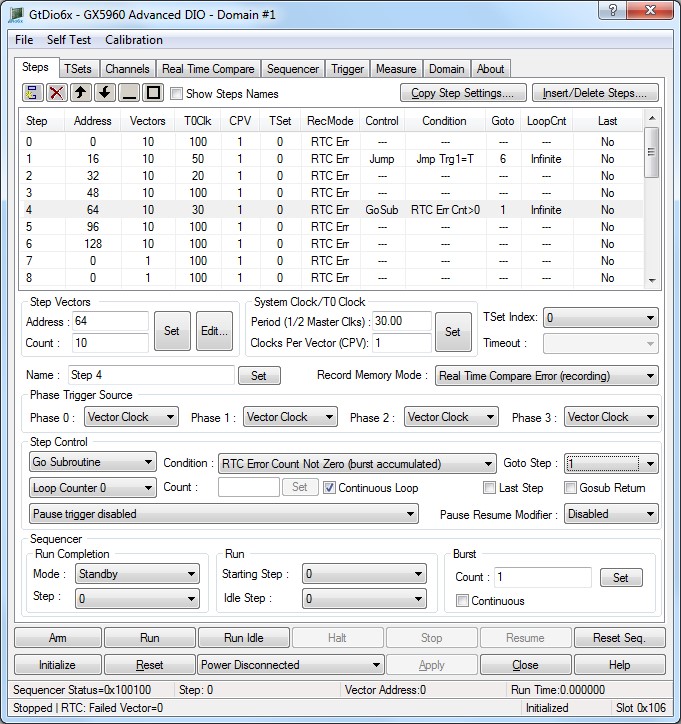
The panel Steps tab is used to display and set the DIO domain boards steps, editing the step’s vectors, setting the selected step control logic for jumping, editing Timing Sets and most used sequencer operations.
GX5960 Virtual Panel – Steps page
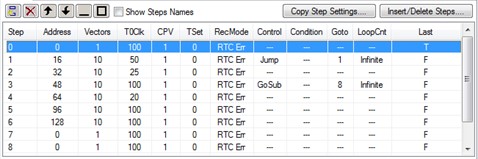
Virtual Panel – Step List Control
The Step list control displays all the defined steps and the steps settings. Double click on any of the steps will open the selected step vector editor.
 Add new step after the selected step.
 Delete the selected step.
 Move the selected step up.
 Move the selected step down.
 Minimize the step control view.
 Maximize the step control view.
 When checked displays all the steps names.
 Open
the “Copy Step Settings” dialog.
Open
the “Copy Step Settings” dialog.
 Open
the “Insert/Delete Steps” dialog.
Open
the “Insert/Delete Steps” dialog.
Count edit box: Sets/displays the selected step number of vectors, values are 1 to 262144.
Relevant API functions: GtDio6xStepSetVectorCount.
Address edit box: Sets/displays the selected step vectors starting address, values are 1 to 262144.
Relevant API functions: GtDio6xStepSetVectorCount.
Assign button: : assign the selected step vector count and starting vector address.
Relevant API functions: GtDio6xStepSetVectorCount.
Vectors... button: see Write Vector Memory section.
Period (1/2 Master Clks) edit box: Sets/displays the selected step system clock (T0CLK) period. The period is programmed in master clock edges (rising and falling), i.e., 1/2 the master clock period. For example, if the master clock is set to 500MHz, then a setting of 20 would be 20 * (1/2 (2ns)) = 20ns. Valid values for T0CLK are from 20 to 65550 and must be a multiple of two.
Relevant API functions: GtDio6xStepSetClock.
Clocks Per Vector (CPV): Sets/displays the selected step Clocks Per Vector. The CPV determines the number of System Clocks will be generated for each vector Clock. When CPV = 1, then Vector Clock is equal to System Clock. When CPV = 2, then Vector Clock is two times the System Clock.
Relevant API functions: GtDio6xStepSetClock.
Name edit box: Sets/displays the selected step name.
Relevant API functions: GtDio6xStepSetName.
Set button: Sets the selected step name.
Relevant API functions: GtDio6xStepSetName.
Record Memory Mode drop list box list box: Sets/displays the selected step record memory behavior, values are as follows:
0. Disabled (no recording) All three record memories are disabled. The record memory does not record any incoming data. The record memory can either be set to record all zeros (No Error) or disabled using the GtDio6xSetSequencerRecordMode API.
1. Error Count (no recording): The Error Count and Error Address Memory are enabled (See comments). The record memory does not record any incoming data. Record memory can either be set to record all zeros (No Error) or disabled using the GtDio6xSetSequencerRecordMode API.
2. Real Time Compare Error (recording): All three memories are enabled, the Error Count and the Error Address Memory, the Record Index Memory and the Record Memory. The Record Memory is set to record real time record data.
3. Response (recording): All three memories are enabled. All three memories are enabled, the Error Count and the Error Address Memory, the Record Index Memory and the Record Memory. The Record Memory is set to record response data.
Relevant API functions: GtDio6xStepSetRecordMode.
Phase 0 Source to Phase 3 Source drop list box: Sets/displays the selected step phase timing logic. The phase timing logic can be triggered by either the System Clock or the vector Clock (the window timing logic is only reset with System Clock).
Relevant API functions: GtDio6xStepSetPhaseTriggerSource.
Control Logic (per step) group box:
Action drop list box list box: Sets/displays the selected step control logic action, values are: None, Jump and Go Subroutine.
0. None: Disable the jump logic for this step.
1. Jump: Jump forces the next step number to be replaced by the specified step number if jump condition is true.
2. Go Subroutine: Gosub jumps save the current step number and forces the next sequence step number to be replaced by the specified step number. The Gosub Return flag set true will force the sequence step number to be one more than the saved step number.
Relevant API functions: GtDio6xStepSetControl.
Condition drop list box: Sets/displays the selected step condition, values are:
0. Always (Unconditional) : Jump always (Unconditional).
1. RTC Error detected in Step: Jumps if the Real Time Compare detected at least one failure in the step.
2. RTC Error not detected in Step: Jumps if the Real Time Compare did not detect failures in the step.
3. RTC Error Count Not Zero (burst accumulated): Real Time Compare Error Count Not Zero (burst accumulated. The error vector flag allows the user to determine if any of the expect pattern codes will cause the burst error flag to be set if the expected state is not true. At least one vector in the specified step has to have its error vector flag be set in order to enable the error count. See GtDio6xRealTimeCompareSetJumpSource API.
4. RTC Error Count Zero (burst accumulated): RTC Error Count Zero (burst accumulated). Real Time Compare Error Count Zero (burst accumulated. The error vector flag allows the user to determine if any of the expect pattern codes will cause the burst error flag to be set if the expected state is not true. At least one vector in the specified step has to have its error vector flag be set in order to enable the error count. See GtDio6xRealTimeCompareSetJumpSource API.
5. Jump 0 Trigger True: Jump 0 Trigger True. Four sequence jump triggers are available. The sequence jump triggers are used for conditional jumping/looping. A jump/loop can be based on the true/false state of any of the four sequence jump triggers. For example, if jump trigger 1 test mode is set to 'Low Level', then a jump if trigger 1 true would occur if the selected jump trigger 1 source is low. See the GtDio6xTrigConfigSetJumpTrigger API for more details. The true/false state of the jump triggers is based on the jump trigger test event. If the jump trigger event is set to “Low Level”, then true would indicate the jump trigger signal is low and false would indicate the jump trigger signal is high.
6. Jump Trigger 0 False: Jump Trigger 0 False Four sequence jump triggers are available. The sequence jump triggers are used for conditional jumping/looping. A jump/loop can be based on the true/false state of any of the four sequence jump triggers. For example, if jump trigger 1 test mode is set to 'Low Level', then a jump if trigger 1 true would occur if the selected jump trigger 1 source is low. See the GtDio6xTrigConfigSetJumpTrigger API for more details. The true/false state of the jump triggers is based on the jump trigger test event. If the jump trigger event is set to “Low Level”, then true would indicate the jump trigger signal is low and false would indicate the jump trigger signal is high.
7. Jump Trigger 1 True: Jump Trigger 1 True Four sequence jump triggers are available. The sequence jump triggers are used for conditional jumping/looping. A jump/loop can be based on the true/false state of any of the four sequence jump triggers. For example, if jump trigger 1 test mode is set to 'Low Level', then a jump if trigger 1 true would occur if the selected jump trigger 1 source is low. See the GtDio6xTrigConfigSetJumpTrigger API for more details. The true/false state of the jump triggers is based on the jump trigger test event. If the jump trigger event is set to “Low Level”, then true would indicate the jump trigger signal is low and false would indicate the jump trigger signal is high.
8. Jump Trigger 1 False: Jump Trigger 1 False. Four sequence jump triggers are available. The sequence jump triggers are used for conditional jumping/looping. A jump/loop can be based on the true/false state of any of the four sequence jump triggers. For example, if jump trigger 1 test mode is set to 'Low Level', then a jump if trigger 1 true would occur if the selected jump trigger 1 source is low. See the GtDio6xTrigConfigSetJumpTrigger API for more details. The true/false state of the jump triggers is based on the jump trigger test event. If the jump trigger event is set to “Low Level”, then true would indicate the jump trigger signal is low and false would indicate the jump trigger signal is high.
9. Jump Trigger 2 True: Jump Trigger 2 True. Four sequence jump triggers are available. The sequence jump triggers are used for conditional jumping/looping. A jump/loop can be based on the true/false state of any of the four sequence jump triggers. For example, if jump trigger 1 test mode is set to 'Low Level', then a jump if trigger 1 true would occur if the selected jump trigger 1 source is low. See the GtDio6xTrigConfigSetJumpTrigger API for more details. The true/false state of the jump triggers is based on the jump trigger test event. If the jump trigger event is set to “Low Level”, then true would indicate the jump trigger signal is low and false would indicate the jump trigger signal is high.
10. Jump Trigger 2 False: Jump Trigger 2 False. Four sequence jump triggers are available. The sequence jump triggers are used for conditional jumping/looping. A jump/loop can be based on the true/false state of any of the four sequence jump triggers. For example, if jump trigger 1 test mode is set to 'Low Level', then a jump if trigger 1 true would occur if the selected jump trigger 1 source is low. See the GtDio6xTrigConfigSetJumpTrigger API for more details. The true/false state of the jump triggers is based on the jump trigger test event. If the jump trigger event is set to “Low Level”, then true would indicate the jump trigger signal is low and false would indicate the jump trigger signal is high.
11. Jump Trigger 3 True: Jump Trigger 3 True. Four sequence jump triggers are available. The sequence jump triggers are used for conditional jumping/looping. A jump/loop can be based on the true/false state of any of the four sequence jump triggers. For example, if jump trigger 1 test mode is set to 'Low Level', then a jump if trigger 1 true would occur if the selected jump trigger 1 source is low. See the GtDio6xTrigConfigSetJumpTrigger API for more details. The true/false state of the jump triggers is based on the jump trigger test event. If the jump trigger event is set to “Low Level”, then true would indicate the jump trigger signal is low and false would indicate the jump trigger signal is high.
12. Jump Trigger 3 False: Jump Trigger 3 False. Four sequence jump triggers are available. The sequence jump triggers are used for conditional jumping/looping. A jump/loop can be based on the true/false state of any of the four sequence jump triggers. For example, if jump trigger 1 test mode is set to 'Low Level', then a jump if trigger 1 true would occur if the selected jump trigger 1 source is low. See the GtDio6xTrigConfigSetJumpTrigger API for more details. The true/false state of the jump triggers is based on the jump trigger test event. If the jump trigger event is set to “Low Level”, then true would indicate the jump trigger signal is low and false would indicate the jump trigger signal is high.
Relevant API functions: GtDio6xStepSetControl.
Goto Step drop list box: Sets/displays the selected step control logic goto step number.
Relevant API functions: GtDio6xStepSetSubroutineReturn .
Gosub Return Flag check box: Sets/displays the selected step control logic goto subroutine return flag.
Relevant API functions: GtDio6xStepSetSubroutineReturn.
Loop Counter drop list box list box: Sets/displays the selected step control logic loop counter to set.
Relevant API functions: GtDio6xStepSetSubroutineReturn.
Count Counter drop list box list box: Sets/displays the selected step control logic loop counter value, value range: 1-65536.
Relevant API functions: GtDio6xStepSetSubroutineReturn.
Set button: Sets the selected step control logic loop counter value.
Relevant API functions: GtDio6xStepSetSubroutineReturn.
Continuous Loop button: Sets the selected step control logic loop counter to loop continuously.
Relevant API functions: GtDio6xStepSetSubroutineReturn.
Last Step button: Sets the selected step as the last step in the sequence.
Relevant API functions: GtDio6xStepSetLast.
Pause trigger drop list box: Sets/displays the selected step control pause trigger. Settings are as follows:
0. Pause trigger disabled.
1. Pause: PauseTrigger0=True, Resume: PauseResumeTrigger0=False: Pause on Trigger 0 true, Resume on Pause Trigger 0 false (see GtDio6xTrigConfigSetPauseResumeTrigger API for details).
2. Pause: PauseTrigger0=False, Resume: PauseResumeTrigger0=True: Pause: on Trigger 0 false, Resume on Pause Trigger 0 true (see GtDio6xTrigConfigSetPauseResumeTrigger API for details).
3. Pause: PauseTrigger1=True, Resume: PauseResumeTrigger1=False: Pause: on Trigger 1 true, Resume on Pause Trigger 1 false (see GtDio6xTrigConfigSetPauseResumeTrigger API for details).
4. Pause: PauseTrigger1=False, Resume: PauseResumeTrigger1=True: Pause: on Trigger 1 false, Resume on Pause Trigger 1 true (see GtDio6xTrigConfigSetPauseResumeTrigger API for details).
5. Pause: Phase0 Assert edge, Resume: Phase0ResumeTrigger: Pause on Timing Set Phase 0 Assert edge, Resume on Phase 0 Resume Trigger (see GtDio6xTrigConfigSetPhaseResumeTrigger API for details).
6. Pause: Phase0 Return edge, Resume: Phase0ResumeTrigger: Pause on Timing Set Phase 0 Return edge, Resume on Phase 0 Resume Trigger (see GtDio6xTrigConfigSetPhaseResumeTrigger API for details).
7. Pause: Phase1 Assert edge, Resume: Phase1ResumeTrigger: Pause on Timing Set Phase 1 Assert edge, Resume on Phase 1 Resume Trigger (see GtDio6xTrigConfigSetPhaseResumeTrigger API for details).
8. Pause: Phase1 Return edge, Resume: Phase1ResumeTrigger: Pause on Timing Set Phase 1 Return edge, Resume on Phase 1 Resume Trigger (see GtDio6xTrigConfigSetPhaseResumeTrigger API for details).
9. Pause: Phase2 Assert edge, Resume: Phase2ResumeTrigger: Pause on Timing Set Phase 2 Assert edge, Resume on Phase 2 Resume Trigger (see GtDio6xTrigConfigSetPhaseResumeTrigger API for details).
10. Pause: Phase2 Return edge, Resume: Phase2ResumeTrigger: Pause: on Timing Set Phase 2 Return edge, Resume on Phase 2 Resume Trigger (see GtDio6xTrigConfigSetPhaseResumeTrigger API for details).
11. Pause: Phase3 Assert edge, Resume: Phase3ResumeTrigger: Pause on Timing Set Phase 3 Assert edge, Resume on Phase 3 Resume Trigger (see GtDio6xTrigConfigSetPhaseResumeTrigger API for details).
12. Pause: Phase3 Return edge, Resume: Phase3ResumeTrigger: Pause: on Timing Set Phase 3 Return edge, Resume on Phase 3 Resume Trigger (see GtDio6xTrigConfigSetPhaseResumeTrigger API for details).
Relevant API functions: GtDio6xStepSetPauseResumeTrigger.
Pause Resume Modifier drop list box list box: Sets/displays the selected step control pause trigger resume modifier, values are:
0. Disabled: Continue on Resume Signal only/
1. Delay 0: Continue either on resume signal or Vector Delay 1 timer done (see GtDio6xTimerSetPauseResumeModifierDelay API).
2. Delay 1: Continue either on resume signal or Vector Delay 2 timer done (see GtDio6xTimerSetPauseResumeModifierDelay API).
3. Timeout: Set pattern timeout status if resume not received before pattern timer terminal count. The timer will start when the Pause starts. The Pattern Delay Timer generates a Resume when the timer times out (see GtDio6xTimerSetPauseResumeModifierTimeout API).
Relevant API functions: GtDio6xStepSetPauseResumeTrigger .
Sequencer group box:
Run Completion Mode drop list box list box: Sets/displays the sequencer run completion mode as follows:
Standby: outputs the first pattern of the specified standby step and vector memory can be accessed by the user.
Idle: outputs the entire pattern set of the specified Idle step and vector memory cannot be accessed.
Relevant API functions: GtDio6xSequencerSetRunCompletionMode.
Run Completion Step drop list box list box: Sets/displays the sequencer run completion step number, value 0-4095.
Relevant API functions: GtDio6xSequencerSetRunCompletionMode.
Run Starting Step drop list box list box: Sets/displays the run sequencer starting at the specified Step.
Relevant API functions: GtDio6xSequencerRun .
Idle Step drop list box: Sets/displays the sequencer idle step number.
Relevant API functions: GtDio6xSequencerSetIdleStep .
Burst Count edit box: Sets/displays the sequencer burst count.
Relevant API functions: GtDio6xSequencerSetBurstCount .
Burst Continuous check box: Sets/displays the sequencer burst count to Continuous.
Relevant API functions: GtDio6xSequencerSetBurstCount .