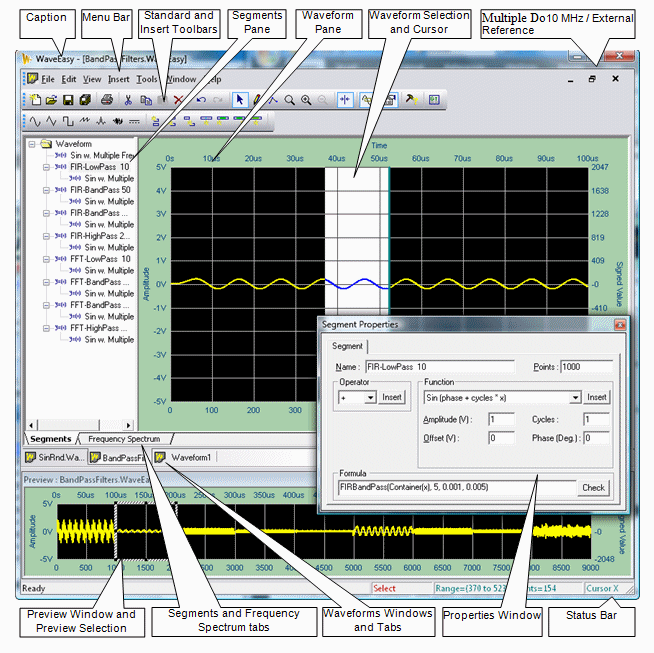
Once WaveEasy is started the main window is displayed as shown below:
The following items are displayed:
Caption – Displays the active waveform file name being edited. If the waveform is not saved to a file yet the waveform name is displayed with no file extension.
Menu Bar – The application menu bar.
Standard and Insert Toolbars – Displays two toolbars which are used for quick access to invoke commands that are also available from the menu.
Waveform Windows and Tabs – Display the waveform in time domain or frequency domain. The Segments view is divided with a moveable splitter between the Segments Pane and the Waveform Pane which can display the waveform in time domain – Segments tab, or an analysis of the time domain - Frequency Spectrum tab.
Segments Pane – Part of the Waveform window. Displays the waveform segments and segment items in a tree. Each waveform is divided into segments which can be further divided into segment items. Segment and segment items can be edited using drawing commands or from the Properties Window by a mathematical formula associated with the segment or the segment item.
Waveform Pane – Part of the Waveform window. Displays the waveform. The pane can display the whole waveform or selected segment or segment item as selected in the segments pane or in the waveform preview window. The waveform is displayed in yellow. Additional in addition multiple waveforms axes and axes values, grid (gray), and the waveform selection (white) and cursor (blue) can also be displayed. You can customize many of the elements displayed in the pane including the color of these elements, horizontal and vertical axes range and name, grid and more from the Tools, Options menu.
Waveform Selection and Cursor – Selected area inside the waveform pane (white) and the cursor (blue). The status bar displays the selected area's start and end position the cursor position and voltage.
Multiple Document Interface (MDI) controls – The main window can display multiple documents, each in its own window. Each of the document views can be minimized, maximized or display in normal mode (in the above example the window is maximized).
Preview Window and Preview Selection – The preview window displays the whole waveform. Users can draw a selection rectangle which is used to select a portion of the waveform – this will cause the active Waveform Pane to show the selected waveform portion.
Segments and Frequency Spectrum tabs – Each Waveform window displays the waveform or its segments in time or frequency domain.
Waveform Window and Tabs – Displays a list of open waveform documents windows. Clicking on the specific tab will show the associated document window.
Properties Window – Displays the properties of the Segments Pane selected item which can be a waveform, waveform segment or waveform segment item. These properties are different for each selection. However, this window is mostly used to edit and enter mathematical formulas for a specific segment or segment item.
Status Bar - Displays the menu/toolbar description, working mode (Select, Freehand Draw, LineDraw, and Zoom), selection area points (start, end), cursor position and voltage level, and mouse position (x, y).