.jpg "GC2200/GTX2200 Virtual Panel (not Initialized)")
The GXCNT includes a virtual panel program, which provides full access to the various configuration settings and operating modes. To fully understand the front panel operation, it is best to become familiar with the functionality of the board.
To open the virtual panel application, select GC2200/GTX2200 Panel from the Marvin Test Solutions, GXCNT menu under the Start menu. The GC2200/GTX2200 virtual panel opens as shown here:
GC2200/GTX2200 Virtual Panel (not Initialized)
The function of the panel button controls are shown below:
Initialize - Opens the Initialize Dialog (see Initialize Dialog paragraph) in order to initialize the board driver. The current settings of the selected counter will not change after calling initialize. The panel will reflect the current settings of the counter after the Initialize dialog closes.
Reset - resets the PXI board settings to their default state and clears the reading.
Apply – applies changed settings to the board
Close - closes the panel. Closing the panel does not affect the counter settings.
Help - opens the on-line help window. In addition to the help menu, the caption shows a What’s This Help button (?) button. This button can be used to obtain help on any control that is displayed in the panel window. To display the What’s This Help information click on the (?) button and then click on the control – a small window will display the information regarding this control.
The Initialize dialog initializes the driver for the selected counter board. The counter settings will not change after initialize is called. Once initialize, the panel will reflect the current settings of the counter.
The Initialize dialog supports two different device drivers that can be used to access and control the board:
Use Marvin Test Solutions’s HW – this is the device driver installed by the setup program and is the default driver. When selected, the Slot Number list displays the available counter boards installed in the system and their slots. The chassis, slots, devices and their resources are also displayed by the HW resource manager, PXI/PCI Explorer applet that can be opened from the Windows Control Panel. The PXI/PCI Explorer can be used to configure the system chassis, controllers, slots and devices. The configuration is saved to PXISYS.INI and PXIeSYS.INI located in the Windows folder. These configuration files are also used by VISA. The following figure shows the slot number 0x105 (chassis 1 Slot 5). This is the slot number argument (nSlot) passed by the panel when calling the driver GxCntInitalizeVisa function used to initialize driver with the specified board.
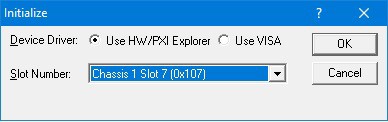
Initialize Dialog Box using Marvin Test Solutions’ HW driver
Use VISA – this is a third party device driver usually provided by National Instrument (NI-VISA). When selected, the Resource list displays the available boards installed in the system and their VISA resource address. The chassis, slots, devices and their resources are also displayed by the VISA resource manager, Measurement & Automation (NI-MAX) and in Marvin Test Solutions PXI/PCI Explorer. The following figure shows PXI9::13::INSTR as the VISA resource (PCI bus 9 and Device 13). This is VISA resource string argument (szVisaResource) passed by the panel when calling the driver GxCntInitalizeVisa function to initialize the driver with the specified board.
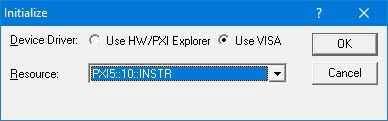
Initialize Dialog Box using VISA resources
After the board is initialized the panel is enabled and will display the current setting of the board. The panel caption will show the board address (0x105 in this example). The following figure shows the Setup page settings:
.jpg "GC2200/GTX2200 Virtual Panel (Initialized)")
GC2200/GTX2200 Virtual Panel (Initialized)
The following controls are shown in the Setup page:
Function Settings:
Function: Sets/displays the current counter Function mode.
Measure: Sets/displays the Measure mode. Measure mode updates according to the function mode. Measure mode settings are as follow:
“Channel A” or “Channel B”: Select the measured channel when Function mode is Fast Frequency, Frequency, Period, Pulse Width, Single Period or Totalize.
“A Gated By B” or “B Gated By A”: When Function mode is Totalize Gated, Totalize Gated Once or Accumulate.
“A Divided by B” or “B Divided by A”: When Function mode is Auto Ratio or Ratio.
“A to B” or “B to A”: When Function mode is Time Interval or Time Interval Delay.
Condition (Group Box)
Start / Stop Slope: Sets/displays the Start or Stop Slope Polarity. The Slope Polarity can be Positive or Negative. This is enabled only when the Function mode is Accumulate, Totalize Gated or Totalize Gated Once.
Delay (S): Sets/displays the Delay time. The control is enabled when Function mode is Time Interval Delay.
Acquisition Settings:
Acquisition Mode: Sets/displays the Acquisition mode. Selections specify how often unarmed measurements should be made.
Continuous: instrument continuously measures.
Once: instrument makes a single measurement and displays the result. Trig button clears the last measurement from the display and initiates a new measurement.
Paced: Enables a pacing interval between measurements. (Pacing provides precise control of the spacing between measurements). The current Acquisition interval is shown in the Interval dropdown edit box.
Interval (S): Sets/displays the Acquisition Interval time. The Interval setting is either a drop down choice of several intervals or direct value entry.
Gate Time: Sets/displays the gate time. The Gate Time sets the minimum measurement time window.
Auto Set: Automatic adjustment of the board setting in order to obtain a stable reading.
Measurement number of digits (Group Box)
Mode (dropdown list):
Auto: Sets/displays the counter automatically sets the number of digits according to the gate time.
Fixed: Sets/displays the measurement’s number of digits. Allows the user to overrides the counter’s automatic measure number of digits settings, all measurement will have the same number of digits as was set by the nMaxDigits parameter.
Digits (dropdown list): Number of digits can be 5 to 14.
Clicking on Channel A / Channel B page will show the setting for the specified channel shown in the figure below:
.jpg "GC2200/GTX2200 Virtual Panel (Channel A\Channel B Page)")
GC2200/GTX2200 Virtual Panel (Channel A\Channel B Page)
The following controls are shown in the Channel A/B page:
Slope: Sets/displays the Trigger Slope for the input channel. The input channel slope determines when new measurement starts.
Impedance: Sets/displays the channel input impedance. The two settings are High (1 MOhms) or Low (50 Ohms).
Coupling: Sets/displays the channel coupling. Coupling may be set to DC or AC.
Frequency Range: Sets/displays the channel range. Channel A and Channel B may be set to 0 to225MHz. Channel A may be set to 0 to 1.3GHz/2GHz range and the panel enables the high frequency option only for GC2220/GC2230/GTX2220/GTX2230 model counters. High Frequency automatically sets the Channel A input impedance to 50 ohms.
Trigger Level Mode: sets or displays the Trigger Level Mode, modes are Fixed, Auto or Hold Last. When the Trigger Level Mode is set to Fixed the user may set the trigger level manually in the Trigger Level edit box.
Trigger Level (V) : Sets/displays the input channel trigger level voltage. When Trigger Level Mode is set to Fixed, the operator can set the trigger level manually (–5.0V to +5.0V). Input voltage will be rounded to the trigger level resolution of 0.04V. Trigger levels are read back from the board after applying new value. Auto or Hold Last modes disable editing the trigger level but continue to display the current trigger level setting..
Clicking on the Advanced tab will show the Advanced page as shown in the figure below:
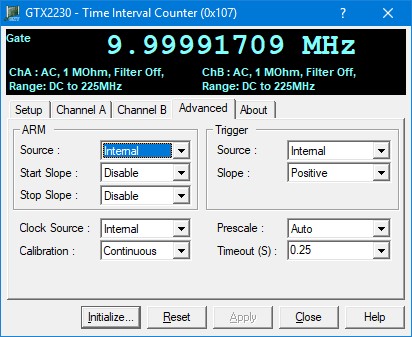
GC2200/GTX2200 Virtual Panel – Advanced Page
The following controls are shown in the Advanced page:
Arm Settings:
Source: Sets/displays the Arm source as follow:
Disable: Measurements are done according to Acquisition mode.
External: The External Arm Input connector
Alternate: The Alternate input channel (only for single channel measurements such as Frequency or Period).
Start/Stop Slope: Sets/displays the Arm Start or Stop Slope as follow:
Positive Slope: Positive signal transition.
Negative Slope: Negative signal transition.
Disable: Disables start and stop arming.
Trigger Settings:
Source: Sets/displays the Trigger source. A trigger source initiates the Acquisition operation of the counter. The available modes are:
Internal: Acquisition begins immediately after selection or after Reset.
External: Synchronize measurements to external events as defined by the Trigger Slope settings. Selecting this mode enables the Trigger Slope dropdown box.
Slope: Sets/displays the External Trigger Slope settings applied to the ARM input as follow:
Positive: Acquisition is initiated by the first positive edge.
Negative: Acquisition is initiated by the first negative edge.
Clock Source: Sets/displays the Clock Source.
Internal: Selects the internal clock installed on the board.
External: External clock input as the clock.
Alternate: When measuring only one channel, the second (or alternate) channel can provide the reference frequency input. Available only with Frequency, Fast Frequency, Period, Single Period and Width functions.
Calibration Mode: Sets/displays the Calibration Mode.
Off: The current calibration factors are retained. Stable calibration factors preclude a possible shift in results during a period of data collection.
Continuous: Calibration is performed continuously.
Once: Selecting “Once” causes an immediate execution of the calibration procedure, and then disables self-calibration. This mode ensures that data is taken with recent calibration factors, and helps to provide repeatable results.
Prescale Mode: Sets/displays the Prescale Mode.
Off: Prescaling is disabled.
Continuous: The counter continuously prescales the actual measurement.
Auto: The counter determines the need for prescaling automatically by making a quick frequency check prior to the actual measurement. The process takes about 20 mS.
Prescale Mode: Sets/displays the Prescale Mode.
Off: Prescaling is disabled.
Continuous: The counter continuously prescales the actual measurement.
Auto: The counter determines the need for prescaling automatically by making a quick frequency check prior to the actual measurement. The process takes about 20 mS.
Timeout (S): Sets/displays the measurement timeout. Setting is either a drop down choice of several valuesor direct value entry.
Counter Ref Clock To PXI Ref Clock: Sets/displays the connection state of the Counter Reference Clock to the PXI Reference Clock. The PXI chassis has a 10 MHz clock line (PXI_CLK10) in its backplane that allows devices plugged into the non-star controller slots (slots 3 and higher) to phase-lock their oscillators to the backplane clock. A single backplane clock can control this way the drift in the oscillators on all the devices in the non-star controller slots. The GTX22x0 board, when plugged into the star-controller slot (slot 2) can replace the PXI backplane clock with its much more stable oscillator.
Note: Visible only if the GTX22x0 board is plugged into the star-controller slot (slot 2) of the PXI chassis.
Clicking on the About tab will show the About page as shown in the figure below:
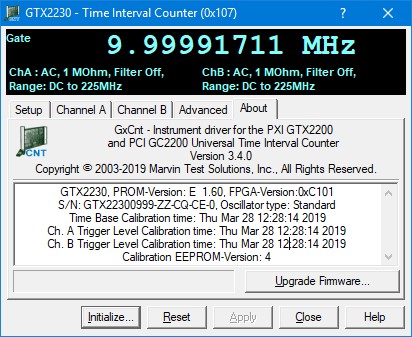
GC2200/GTX2200 Virtual Panel – About Page
The following controls are shown in the About page:
The top part of the About page displays version and copyright of the GXCNT driver. The bottom part displays the board summary. The board summary lists the Boards Type, e.g. GTX2210, PROM version, FPGA Version, Serial number, Oscillator type, Standard or Oven controlled and calibration time for the time base and channels A and B trigger level.