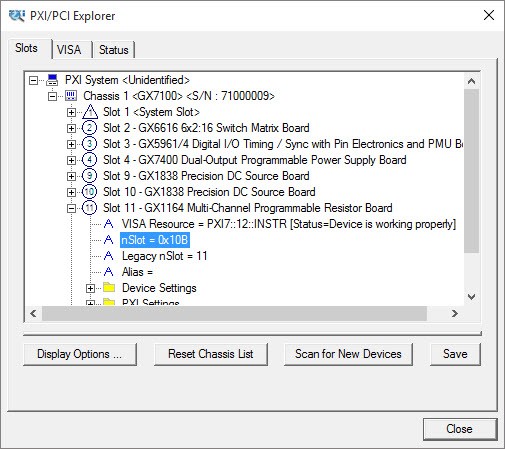
To configure your PXI/PCI system using the PXI/PCI Explorer applet follow these steps:
1. Start the PXI/PCI Explorer applet. The applet can be start from the Windows Control Panel or from the Windows Start Menu, Marvin Test Solutions, HW, PXI/PCI Explorer.
2. Identify Chassis and Controllers. After the PXI/PCI Explorer started it will scan your system for changes and will display the current configuration. The PXI/PCI Explorer automatically detects systems that have Marvin Test Solutions controllers and chassis. In addition, the applet detects PXI-MXI-3/4 extenders in your system (manufactured by National Instruments). If your chassis is not shown in the explorer main window, use the Identify Chassis/Controller commands to identify your system. Chassis and Controller manufacturers should provide INI and driver files for their chassis and controllers to be used by these commands.
3. Change chassis numbers, PXI devices Legacy Slot numbering and PXI devices Alias names. These are optional steps to be performed if you would like your chassis to have different numbers. Legacy slots numbers are used by older Marvin Test Solutions or VISA drivers. Alias names can provide a way to address a PXI device using your logical name (e.g. “DMM1”). For more information regarding these numbers see the Gx1164Initialize and Gx1164InitializeVisa functions.
4. Save you work. PXI Explorer saves the configuration to the following files located in the Windows folder: PXISYS.ini, PXIeSYS.ini and GxPxiSys.ini. Click on the Save button to save you changes. The PXI/Explorer prompt you to save the changes if changes were made or detected (an asterisk sign ‘ *‘ in the caption indicated changes).
PXI/PCI Explorer