.jpg "GX1838 Virtual Panel (not initialized)")
The GX1838 includes a virtual panel program, which enables full utilization of the various configurations and controlling modes. To fully understand the front panel operation, it is best to become familiar with the functionality of the board.
To open the virtual panel application, select GX1838 Panel from the Marvin Test Solutions, GXPDO menu under the Start menu. The GX1838 virtual panel opens as shown here:
GX1838 Virtual Panel (not Initialized)
The following controls are shown:
Initialize: Opens the Initialize Dialog (see Initialize Dialog paragraph) in order to initialize the board driver. The current settings of the selected board will not change after calling initialize. The panel will reflect the current settings of the board after the Initialize dialog closes.
Reset: Resets the board to its default state. The reset disconnects all rails from their sources, disconnect all channels from rails and sets all DACs to 0 volts.
Close: Closes (exits) the GX1838 panel.
Help: Opens the GX1838 on-line help window.
The Initialize dialog initializes the driver for the selected board. The board settings will not change after initialize is called. Once initialize, the panel will reflect the current settings of the board.
The Initialize dialog supports two different device drivers that can be used to access and control the board:
1. Use HW/PXIExplorer – this is the device driver installed by the setup program and is the default driver. When selected, the Slot Number list displays the available boards installed in the system and their slots. The chassis, slots, devices and their resources are also displayed by the HW resource manager, PXI/PCI Explorer applet that can be opened from the Windows Control Panel. The PXI/PCI Explorer can be used to configure the system chassis, controllers, slots and devices. The configuration is saved to PXISYS.INI and PXIeSYS.INI located in the Windows folder. These configuration files are also used by VISA. The following figure shows the slot number 0x106 (chassis 1 Slot 6). This is the slot number argument (nSlot) passed by the panel when calling the driver Gx1838Initialize function used to initialize driver with the specified board.
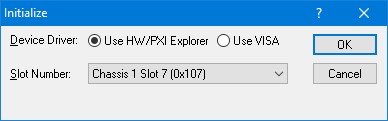
Initialize Dialog Box using Marvin Test Solutions’ HW driver
2. Use VISA – this is a third-party device driver usually provided by National Instrument (NI-VISA). When selected, the Resource list displays the available boards installed in the system and their VISA resource address. The chassis, slots, devices and their resources are also displayed by the VISA resource manager, Measurement & Automation (NI-MAX) and in Marvin Test Solutions PXI/PCI Explorer. The following figure shows PXI5::10::INSTR as the VISA resource (PCI bus 5 and Device 10). This is VISA resource string argument (szVisaResource) passed by the panel when calling the driver Gx1838InitializeVisa function to initialize the driver with the specified board.
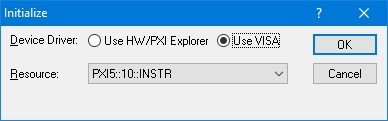
Initialize Dialog Box using VISA resources
After the board is initialized the panel is enabled and will display the current setting of the board. The following picture shows the Setup page settings:
.jpg "GX1838 Virtual Panel (Initialized)")
GX1838 Virtual Panel (Initialized)
The following controls are shown in the Setup page:
DAC Setting (Text Box A-C): Sets/display the correspondent DAC value. Each DAC is displayed with edit box for typing the required voltage value and the actual value is displayed in the next text box. Type in a new value in order to set channel’s voltage and click on the Set button.
Cal Data Source (DAC A – C drop down list): Set/display the specified DAC Calibration data source.
Rail Settings (Rail A – C drop down list): Select/display rail source settings.
Channel Source Group (CH0-CH7 drop down box): Select/display the correspondent channel rail source settings.
Clicking on the About tab will show the About page as shown here:
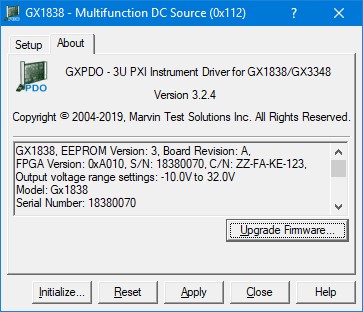
GX1838 Virtual Panel – About Page
The top part of the About page displays version and copyright of the GX1838 driver. The bottom part displays the board summary, including the EEPROM version, the board Revision, the FPGA version, the board serial number and the calibration time. The About page also contains a button Upgrade Firmware… used to upgrade the board FPGA. This button maybe used only when the board requires upgrade as directed by Marvin Test Solutions support. The upgrade requires a firmware file (.jam) that is written to the board FPGA. After the upgrade is complete you must shut down the computer to recycle power to the board.