.jpg "GX7400 Virtual Panel (not Initialized)")
The GXPS includes a virtual panel program, which provides full access to the various configuration settings and operating modes. To open the virtual panel application, select GX7400 Panel from the Marvin Test Solutions, GXPS menu under the Start menu. The GX7400 virtual panel opens as shown here:
GX7400 Virtual Panel (not Initialized)
The function of the panel button controls are shown below:
Initialize allows the user to associate the front panel with a specific PXI counter. The settings of the chosen counter will not change. Then panel will reflect the current settings of the counter after the Initialize dialog closes.
The Initialize button opens an Initialize dialog window. The user may select the slot where the PXI slot location for a PXI counter. Slot 0x105 has a PXI counter installed and is available for selection in the Initialize dialog box as shown in the figure below:
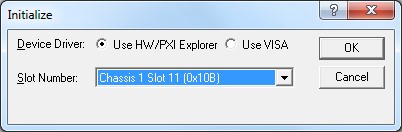
Initialize Dialog Box
The Slot Number: in the Initialize dialog box refers to the PXI slot in which the Gx7400 board is installed. Select the slot from the drop down list. The list displays the slots where Gx7400 boards are installed. The specified slot number can also be reviewed or set by using the PXI/PCI Explorer applet located in the Windows Control Panel. Select the board slot number and click OK to initialize the driver for the specified board.
After the board is initialized the panel is enabled and will display the current setting of the board, click on the About tab. The Calibrate… button should be enabled.
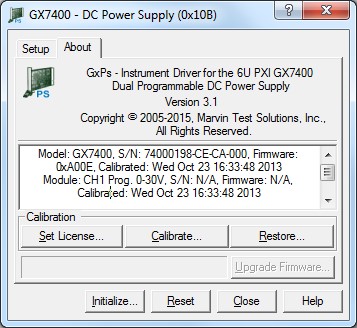
GX7400 Virtual Panel – About Page
Clicking on the “Calibrate…” button will open the User Calibration dialog as follows:
Front Panel Calibration dialog
The Front Panel Calibration dialog applies only to Nonvolatile Calibration, the figure below shows the User Calibration dialog settings:
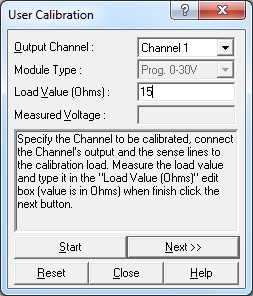
Calibration Dialog
Output Channel (dropdown box): Sets/displays the channel to be calibrated.
Module Type (dropdown box): Sets/displays the specified module type.
Load Value (Edit Box): Sets/displays the load value. The load value should be as close as possible to the recommended value.
Measured Voltage (Edit Box): Sets/displays the measured voltage at the specified channel output value (value provided by user).
Start Button: Click this button if settings need to be changed at any time during calibration.
Next Button: Advances to the next step in the calibration process.
Close Button: Closes the Calibration dialog.
Reset Button: Resets the GX7400 board (useful if need to disconnect the power supply immediately).
Help Button: Opens the Calibration topics from the GXPS on-line help.
Calibration dialog tutorial
The following tutorial demonstrates the calibration process. It uses the Front Panel Calibration dialog to calibrate Channel A with Programmable 30V.
Step 1: Pre-calibration settings
This step detects the specified Channel Module type and sets the recommended load. Specify the output channel to be calibrated with the dropdown menu and then connect the Channel's output and sense lines to the calibration load. Measure the load value (in ohms) and type it in the "Load Value (Ohms)" edit box. Click Next.
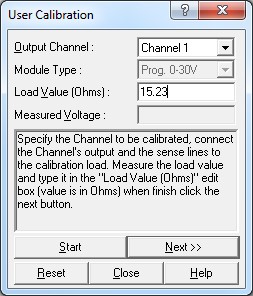
Calibration Dialog - Step 1: Pre-calibration settings
Steps 2 through 9: Measure voltage
Type the measured voltage at the output channel into the edit box and click Next (Enter), click Restart to restart the calibration process or the Close button to terminate the calibration procedure.

Calibration Dialog - Steps 2 through 9: Measure voltage
Step 10: Save Channel’s Calibration data
The Channel is calibrated and the calibration data is ready to be saved to the on-board EEPROM. Click Save (or Enter) to save the Channel calibration data to the on-board EEPROM. To change any previous settings, click Restart. To terminate the calibration procedure, click Cancel.
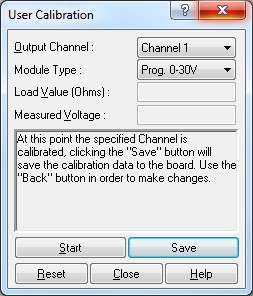
Calibration Dialog - Step 10: Save Channel’s Calibration data