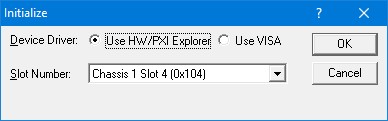
The Initialize dialog initializes the driver for the selected board. The board settings will not change after initialize is called. Once initialized, the panel will reflect the current settings of the board.
The Initialize dialog supports two different device drivers that can be used to access and control the board:
1. Use
Marvin Test Solutions’ HW – this is the device driver installed by
the setup program and is the default driver. When selected, the Slot Number list displays the
available counter boards installed in the system and their slots. The
chassis, slots, devices and their resources are also displayed by the
HW resource manager, PXI/PCI Explorer applet
that can be opened from the Windows Control Panel. The PXI/PCI Explorer
can be used to configure the system chassis, controllers, slots and devices.
The configuration is saved to PXISYS.INI and
PXIeSYS.INI located in the
Windows folder. These configuration files are also used by VISA. The following
figure shows the slot number 0x104 (chassis 1 Slot 4). This is the slot
number argument (nSlot) passed by the panel when calling the driver
Gx6021Initialize function
used to initialize driver with the specified board.
Initialize Dialog Box using Marvin Test Solutions' HW driver
2. Use VISA – this is a third-party device driver usually provided by National Instrument (NI-VISA). When selected, the Resource list displays the available boards installed in the system and their VISA resource address. The chassis, slots, devices and their resources are also displayed by the VISA resource manager, Measurement & Automation (NI-MAX) and in Marvin Test Solutions PXI/PCI Explorer. The following figure shows PX46::13::INSTR as the VISA resource (PCI bus 46 and Device 13). This is VISA resource string argument (szVisaResource) passed by the panel when calling the driver Gx6021InitializeVisa function to initialize the driver with the specified board.
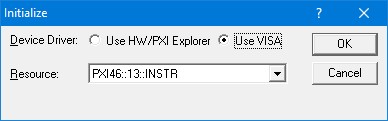
Initialize Dialog Box using VISA resources
After the board is initialized the panel is enabled and will display the current setting of the board. The following picture shows the Setup page settings:
.jpg "GX6021 Virtual Panel (Initialized)")
GX6021 Virtual Panel (Initialized)
The following controls are shown in the Setup page:
View Channel Pins or Groups Relay: Display either the Channels Pins numbers or the Groups Relay numbers.
Connection Mode (drop down list): Display/set the Connect/Disconnect mode. Connect modes are Break All Before Make, Break Before Make, Make Before Break and Make. Disconnect modes are Break All and Break. The two channels to be connected are specified (first and last) by the following drop down. See the Gx6021ConnectChannels function call for description of these modes:
Ch (drop down): Display/set the first channel to be connected/disconnected according to Connection Mode
to Ch. (drop down): Display/set the second channel to be connected/disconnected according to Connection Mode.
Channels/Relays Group Box (1 to 20): Set/displays the current Channels/ Group relays setting (closed or open). When a box is checked, the relay is closed. Similarly, unchecked boxes mean relays are open.
Use Shortest Path (Check box): When checked, specified: if Connect/Disconnect mode should try to use the Shortest Path available. The shortest path can accomplish using the path between the First (A) and Last (D) groups. Only if there are no Daisy Chain connections and the default factory cable connecting First (A) and Last (D) groups is installed.
Check boxes between groups: Display/set the relays that connect/disconnect the specified adjacent groups.
P21: Display/set relays that connect/disconnect group A to the External Coax (Pin21). By default this connector is connected to P22 enabling a shorter connecting path between channels (factory installed). It also enables to Daisy Chain the board to other GX6021 boards.
P22: Display/set relays that connect/disconnect group D to the External Coax (Pin22). By default this connector is connected to P21 enabling a shorter connecting path between channels (factory installed). It also enables to Daisy Chain the board to other GX6021 boards.
Clicking on the About tab will show the About page as shown in the figure below:
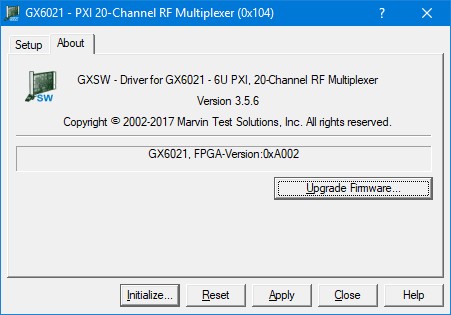
GX6021 Virtual Panel - About Page
The top part of the About page displays version and copyright of the GX6021 driver. The bottom part displays the board summary and the FPGA version. The About page also contains a button Upgrade Firmware… used to upgrade the board FPGA. This button maybe used only when the board requires upgrade as directed by Marvin Test Solutions support. The upgrade requires a firmware file (.jam) that is written to the board FPGA. After the upgrade is complete you must shut down the computer to recycle power to the board.