The GXSW software includes a virtual panel program, which provides full access to the various configuration settings and operating modes. To fully understand the front panel operation, it is best to become familiar with the functionality of the board.
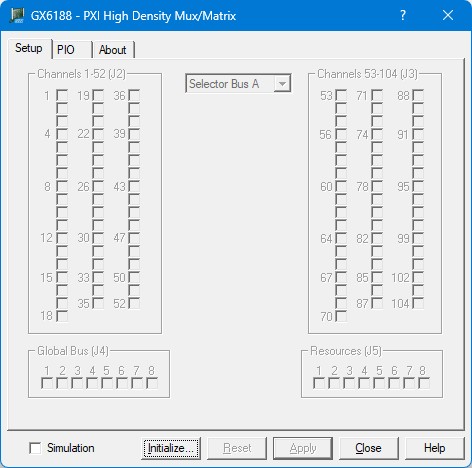
To open the virtual panel application, select GX6188 Panel from the Marvin Test Solutions, GXSW menu under the Start menu. The GX6188 virtual panel will open as shown here:
Virtual Panel - Uninitialized
Simulation – Selects simulation mode. When the check box is checked when the Initialize button is clicked, the panel will operate in simulation mode. If the check box is not checked when the Initialize button is clicked, the panel will control actual hardware.
Initialize – Scans the current system for any GX6188 instruments and initializes each one. The current settings of each device will not change after calling initialize. The panel will reflect the current settings of each device.
Reset – Resets the device settings of the device that corresponds to the currently active page, to their default state.
Apply – Applies changed settings to the board.
Close – Closes the panel. Closing the panel does not affect the board settings.
Help – Opens the on-line help window. In addition to the help menu, the caption shows a What’s This Help button (?) button. This button can be used to obtain help on any control that is displayed in the panel window. To displays the What’s This Help information click on the (?) button and then click on the control – a small window will display the information regarding this control.
After the board is initialized, the panel is enabled and will display the current setting of the board. The following picture shows the Slot Page, Slot 6 (GX6188 card that is installed in PXI Slot #6) settings:
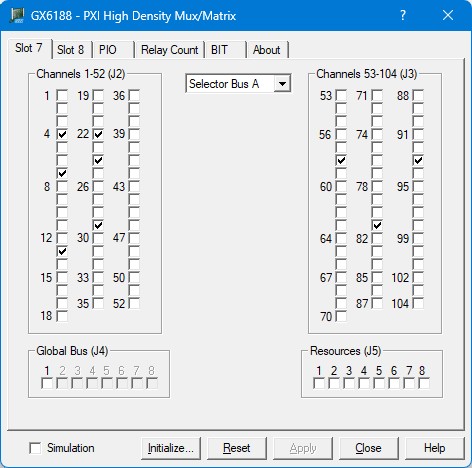
Virtual Panel – Slot Page
The following controls are shown:
Selector Bus (combo box): Set/Displays the currently selected Selector/Internal Bus (A-H)
Channels 1-52 and Channels 53-104 (check boxes): Displays the current relay setting (closed or open). When a box in the channel group is checked, the relay referenced is closed and the channel is connected to the current Selector Bus. Unchecked boxes mean relays are open.
Global Bus (checkboxes): Displays the current relay setting (closed or open). When a box is checked, the relay referenced is closed and the global bus line is connected to the current Selector Bus. Unchecked boxes mean relays are open. Only one global bus line can be connected to each Selector Bus. The rest of the lines will be read-only.
Resources (checkboxes): Displays the current relay setting (closed or open). When a box is checked, the relay referenced is closed and the global bus line is connected to the current Selector Bus. Unchecked boxes mean relays are open.
Clicking on the PIO tab will show the PIO Page as shown here:
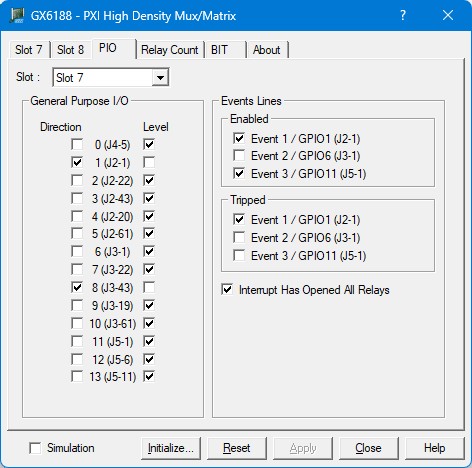
Virtual Panel – PIO Page
The following controls are shown:
General Purpose I/O Group: The group contains controls for the GX6188’s 14 PIO channels.
Direction (checkboxes): Sets/Displays the direction of the associated PIO channel. When a direction box is checked, the channel set to output the configured logic level. An unchecked box will be tri-stated.
Level (checkboxes): Sets/Displays the logic level of the associated PIO channel. When the channel’s direction is set to output, a checked box will output a logic high and an unchecked box will output a logic low.
Event Lines:This group contains controls for the GX6188’s event lines.
Enabled (checkboxes): Sets/Displays of the state of the event lines relay-opening interrupt.
Tripped (checkboxes): Displays the status of the specified event line. If the box was checked, it indicates that the event line has gone low. The board must be Reset to clear the Tripped status.
Interrupt Has Opened All Relays (checkbox): Displays the status of the relay-opening interrupt. If the box is checked, it indicates that an event has occurred that has caused the automatic opening of all relays. The board must be Reset to clear this state.
Clicking on the Relay Count tab will show the Relay Count Page as shown in the figure below:
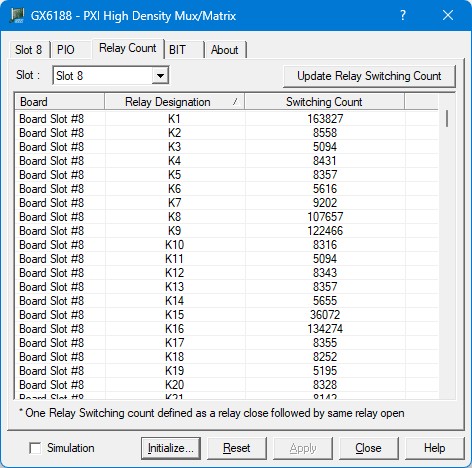
Virtual Panel – Relay Count Page
The following controls are shown in the Relay Count page:
Update Relay Switching Count (button): This button retrieves the latest Relay Switching Count data from the board and automatically update the Relay Count List. Once updated, the list is sorted by Relay Designation number in ascending order (lowest to highest).
Relay Count List (list control): Displays the number of openings and closures of each relay within the currently selected block of the currently selected board (slot).. All columns in the Relay Count list are sortable. To sort the table, click any column header at the top; the list will automatically reorder based on that column. Click the same header again to reverse the sort direction. An arrow in the column header indicates the current order: ▲ Ascending (A–Z, 0–9, oldest–newest) or ▼ Descending (Z–A, 9–0, newest–oldest). To sort by a different column, click its header—the previous sorting will be cleared and the newly selected column will become the active sort column.).
Clicking on the BIT tab will show the BIT Page as shown here:
_Page.jpg "Virtual Panel - Built In Test (BIT) Page")
Virtual Panel - Built In Test (BIT) Page
The following controls are shown in the Built In Test (BIT) page:
Slot Selection (combo box): Set/Displays the currently selected board's slot
Run Button (button): Starts running the Built In Test (BIT)
Abort Button (button): Aborts a currently running Built In Test (BIT)
Built In Test Results (text box): Displays the results of the last completed Built In Test (BIT)
Clicking on the About tab will show the About Page as shown in the figure below:
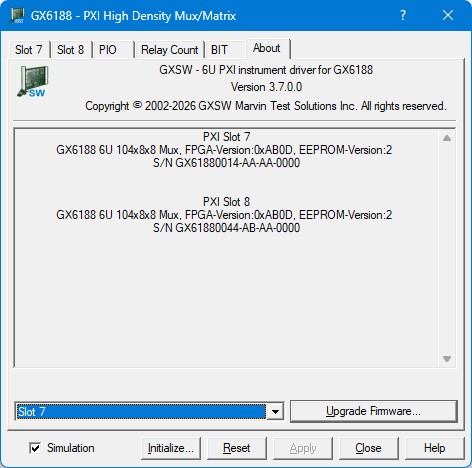
Virtual Panel – About Page
The following controls are shown in the About page:
The top part of the About page displays version and copyright of the GXSW driver. The bottom part displays the board summary.
The About page also contains a button Upgrade Firmware… which is used to upgrade the board’s FPGA firmware. This button maybe used only when the board requires upgrade as directed by Marvin Test Solutions support. The upgrade requires a firmware file (.jam) that is written to the board FPGA. After the upgrade is complete, you must shut down the computer to recycle power to the board.
Slot Selection (combo box): Set/Displays the currently selected board's slot for upgrading firmware.