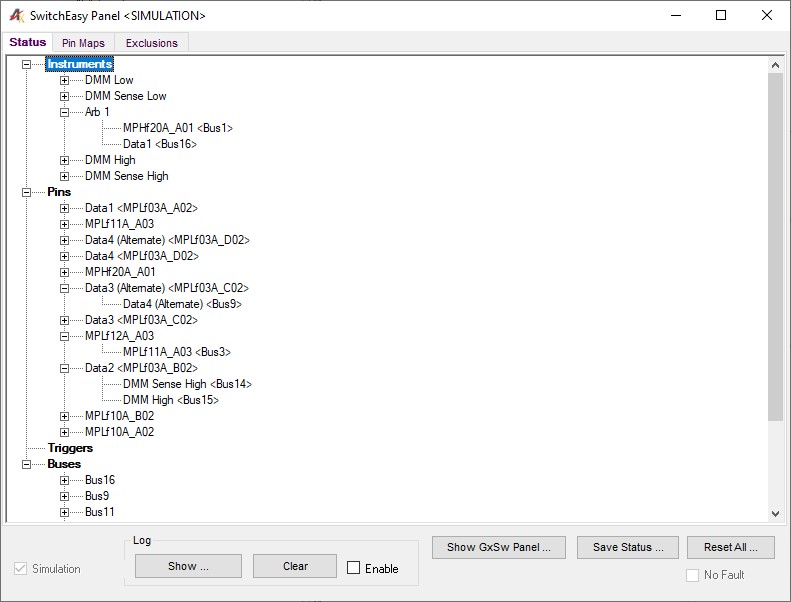
The SwitchEasy Panel is designed to work as a standalone application that displays the switching subsystem's current status. The panel lists the instrument pins, UUT pins, triggers, and busses that are currently in use by the subsystem.
The Status page displays the current state of connections between instrument resources and pins (UUT/Mac panel). This page also shows the global bus resources that are being used to facilitate connections.
Switch Easy Panel Status Page
Status (Tree): The tree view shows currently made connections from the perspective of Instruments, Pins, Triggers, and Buses. The Instruments node expands to show what UUT/MacPanel pin are connected to each instrument resource. The Pins node expands to show what each UUT/MacPanel pin is connected to. For example, in Figure 4‑1, under the Pins node, the Data1 pin is shown being connected to the Arb 1 instrument resource. The same information is mirrored under the Instruments node, where the Arb 1 instrument resource is shown connected to the Data 1 pin.
Log Group Box
Show... (Button): This button will launch the Windows event log which will show a log of Switch Easy events that have occurred.
Clear (Button): This button will clear Switch Easy events from the Windows event log.
Enable (Checkbox): This checkbox will enable or disable logging of Switch Easy events to the Windows event log.
Show GxSw Panel... (Button): This button will launch the GxSw low level panel.
Save Status... (Button): This button will save the connection state of Switch Easy to a file
Reset All... (Button): This button will reset all connections (disconnect everything).
The Pins Maps page displays all pin mappings. The physical location of the pin (slot, tier, column, and row) are shown along with the mapped name.
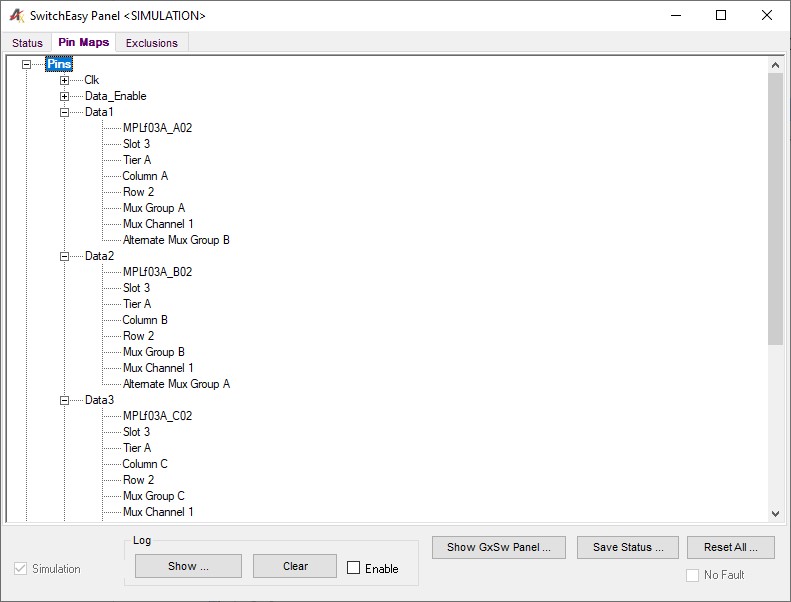
Switch Easy Panel Pin Maps Page
Pin Maps (Tree): The tree view shows currently mapped pins. Each mapped name node expands to show the physical location and description of the pin. For example, in Figure 4‑2, the Data 4 node is expanded to show its location at Slot 3, Tier A, Column D, and Row 2. Mux group (D) and Mux Channel (1) are also displayed to provide the user more information about the physical pin.
The Exclusions page allows the user to select which instrument resources, pins, or global bus resources will be excluded from making connections. Any attempt to connect with an excluded instrument, pin or global bus will result in a run-time error.
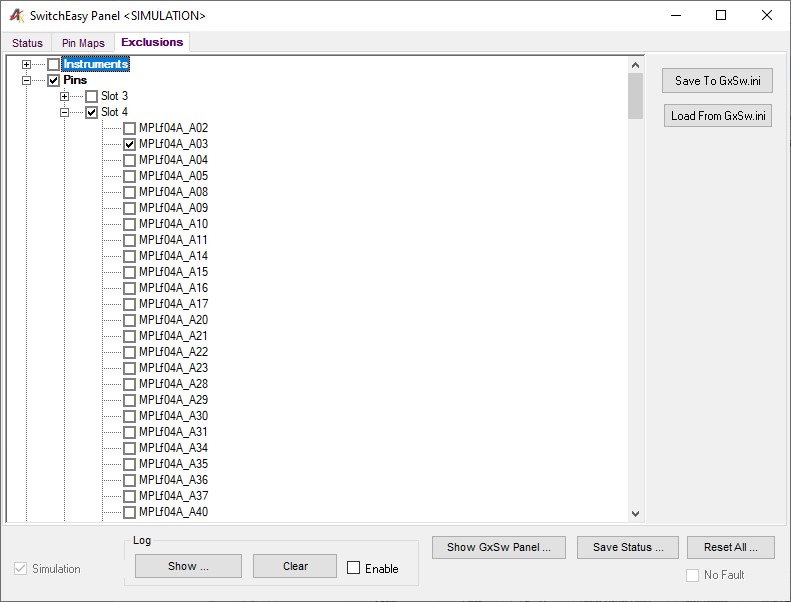
Switch Easy Panel Exclusions Page
Exclusions (Tree): The tree view shows all instruments, pins, triggers, and buses that are part of the switching subsystem. A marked checkbox indicates that the corresponding resource cannot be connected. For example, in Figure 4‑3, the MPLf04A_A02 pin has been checked. This indicates that this particular pin will not be allowed to make a connection to any instrument resource, pin, trigger, or bus.
Save To GxSw.ini (Button): This button allows the user to save the exclusion rules to the GxSw.ini file.
Load From GxSw.ini (Button): This button loads the previously saved exclusions rules from the GxSw.ini file to Switch Easy.