While you could continue to add individual I/O tables for each of the DMM functions, ATEasy offers another method to further simplify driver development. One of the property pages for an Output operation is Discrete. The Discrete mode allows a single I/O Table to accommodate multiple options which typically require multiple I/O Tables. In this example, you will create a single I/O Table allowing you to set the measurement mode of the DMM to any of the available functions.
1. Create a new I/O Table, naming it SetFunction. Set the I/O Table description to Sets the measurement function. For specific steps to create an I/O table, see Creating a SetFunctionVDC I/O Table.
2. Create one Output operation and set the argument to FUNC ". No other changes to this operation are required.
3. Add another Output operation and open the properties window for it.
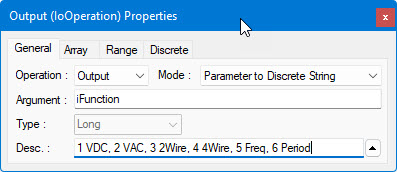
4. Select Parameter to Discrete String from the Mode combo box.
5. Set the Argument name to iFunction. Enter the description: 1 VDC, 2 VAC, 3 2Wire, 4 4Wire, 5 Freq, 6 Period
Your screen should now look similar to the following:
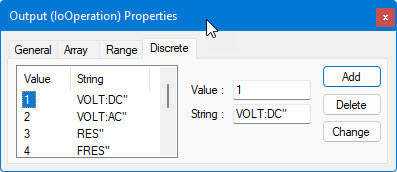
6. Select the Discrete page of the Output properties. This page contains a cross-reference table for multiple I/O Table discrete values. You can enter a different string for each value and when the I/O table is called with a specific value, the corresponding string will be sent to the instrument.
7. Enter 1 in the Value field. Type VOLT:DC" in the String field. Click Add.
8. Repeat steps 7 and 8 for each of the following:
Value |
String |
Used for: |
2 |
VOLT:AC" |
VAC
Measurements |
The discrete output properties page should now look like the following:
9. Add another Send operation.
Your document view should now look like the following:
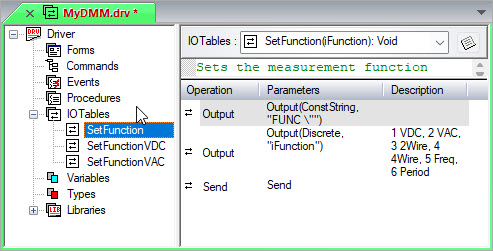
You have created a single I/O table to handle all the DMM measurement functions. When this I/O Table is called with a parameter of 1, the DMM will be set to VDC; when 2 is the argument, the DMM will be set to VAC; and so forth.