 . A new task
with a test is inserted. Rename the task to Procedures
by typing in the edit box or pressing F2
and typing.
. A new task
with a test is inserted. Rename the task to Procedures
by typing in the edit box or pressing F2
and typing.To see if the average procedure you just created works, create a test. In the test, set 20 elements in an array with values ranging from 1 to 20. Then, call the Average procedure. The procedure should return 10.5, which is the average of the filled array. Use a precise test type with a required value set to 10.5.
1. Double-click the Tests submodule below MyProgram in the Workspace window. The Tests view should appear in a new document view.
2. Right-click on the Power
Tests task, and select Insert
Task After . A new task
with a test is inserted. Rename the task to Procedures
by typing in the edit box or pressing F2
and typing.
3. Rename the Untitled Test to Average by clicking on the Untitled Test text and typing Average.
4. Right-click on Average
and select Properties  . Change the test type
to Precise and set the value to
be 10.5.
. Change the test type
to Precise and set the value to
be 10.5.
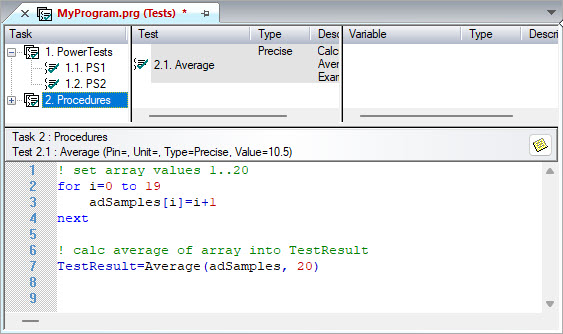
5. Now enter the following code in the code pane:
! set array values 1..20
for i=0 to 19
adSamples[i]=i+1
next
! calc average of array into TestResult
TestResult=Average(adSamples, 20)
The first three statements in this example are a simple For-Next loop filling the array, adSamples. The next line calls the average statement and sets the result to be the test result. Note that you could call the Average procedure by omitting the second optional argument (TestResult=Average(adSamples)), since you are calculating the average of the entire array.
At run-time, after the test is completed, ATEasy will use that variable to determine if the test passed or failed.
The program should now look as illustrated in the figure below:
You can test your code by selecting the TestIt!
 command from the Debug
menu. This command will run only this test. After the test runs, take
a look at the test log and verify that the test you just wrote has a "Pass"
status.
command from the Debug
menu. This command will run only this test. After the test runs, take
a look at the test log and verify that the test you just wrote has a "Pass"
status.
To learn several ways to debug your code, see Debugging Your Code.