 .
.Task and Test, like all other ATEasy objects, have properties. In the case of a Task, the properties include basic information such as name, ID, and description. However, the Test properties include additional information regarding the test type and other properties used at run-time to determine whether the test passed or failed.
1. Open the PS1 context menu by clicking the right mouse
button on PS1 and selecting Properties
.
The properties window opens as shown here.
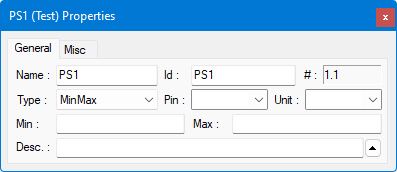
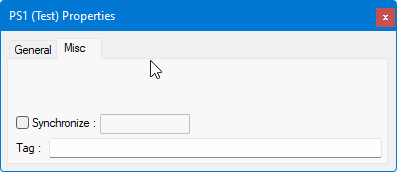
Most of the Test's properties are common to all tests. Some properties, however, are different from one test type to another.
The common properties are:
Property |
Description |
Name |
The Name of the test. Names are not unique, and more than one test or task may have the same name. They appear in the test log report when the application is running and are used by the operator to identify the test. |
ID |
Test ID is a unique identifier used with programming statements to identify the test uniquely. Typically, they are used with task or test statements that are used to branch to another task or test at run-time. |
Type |
Test Type. Can be MinMax, Ref2, RefX, Tolerance, Precise, String, or Other. The test type sets the requirements determining if the test status is PASS or FAIL at run-time. Changing the test type changes the available properties in the properties window. For more information on Type, see Test Status and Test Result. |
Pin |
The Pin where the measurement is being taken. This is a list of user-defined UUT pins. Once you enter a pin name, it is added to the list automatically. |
Unit |
The Unit of measurement. Common units such as "Hz," "Volt," "Ohm," etc. are available and you may add additional Units. Once a new Unit is entered, it is added to the list automatically. |
Description |
A description of the test for documentation purposes. You can expand the size of this edit box by clicking on the maximize button located on the right of this edit box. |
Synchronize (v8) |
Used for multi-threading or Multiple UUTs with parallel run mode applications. When the Synchronize is checked, it allows only one thread to execute the test with the specified (optional) resource name, other threads executing tasks, tests or procedures with the same resource name will be suspended until the test is complete. |
Tag |
Application specific data that is attached to the test and can be used programmatically by the application. |
In our example we will use the MinMax test type. In the MinMax test you set the Minimum and Maximum number allowed for the test result so the test will have a PASS status. If the test result is higher than the Max value, or lower than the Min. value, the test status will be FAIL.
1. Enter the following properties for PS1:
Pin |
P1-13 |
Unit |
Volt (you either type this or select from the combo box list) |
Min |
1.25 |
Max |
1.35 |
2. Select the PS2 test, and enter the following values in the PS2 test properties:
Pin |
P1-14 |
Unit |
Volt |
Min |
2.45 |
Max |
2.55 |
For more information regarding the properties of the Test Status and Test Result, see Test Status and Test Result.