Use the versions feature to save versions of ATEasy files. You can use versions when several programmers are working on the same ATEasy project and you need to track their work, or when you want to track the changes in your own work.
To use the versions feature:
1. From
the File menu, select Versions.
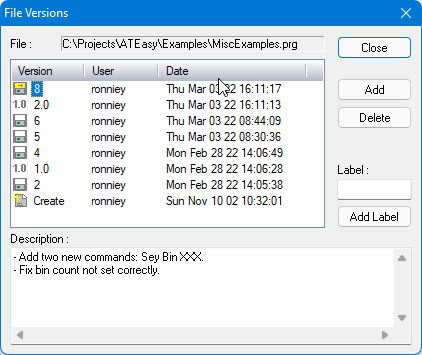
The File Versions dialog box is displayed as follows:
2. Enter a description of the version into the Description box.
3. ATEasy stores a record of changes in the file itself. You can identify this record by doing one of the following:
To identify the changes using automatic version numbering, click Add. The record of changes is saved with a sequential number.
To identify the changes with a name, enter a name into the Label box and then click Add Label. The record is saved with the label you entered. Note that the directory location of the file appears in the File location box.
The file is saved and displayed in the File box with its version or name, the name of the user who saved it, the date it was saved, and its description. The most recent file is placed at the top of the list.
4. To delete a version, select it and then click Delete.
To control how ATEasy saves files, see Controlling Save Options.