 shows up as a placeholder
  in Form Design Mode, the control is not
visible when the form is loaded. The
AImageList control
accepts ATEasy's typical graphic
file formats, including BMP, CUR, WMF, and ICO files.
in Form Design Mode, the control is not
visible when the form is loaded. The
AImageList control
accepts ATEasy's typical graphic
file formats, including BMP, CUR, WMF, and ICO files.The AImageList control allows
you to store a list of graphic images in a specific order for use in a
form. Presently, the only form element that uses image lists is the AToolBar control. Like the Common
Dialog control, although the AImageList
control shows up as a placeholder in Form Design Mode, the control is not
visible when the form is loaded. The
AImageList control
accepts ATEasy's typical graphic
file formats, including BMP, CUR, WMF, and ICO files.
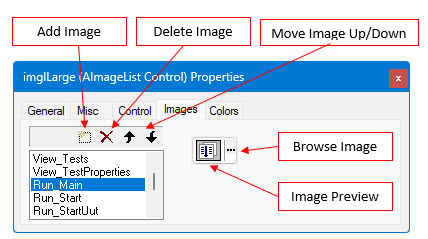
To add images to the AImageList control:
Go to the Images tab of the control's properties page:
Click the topmost empty space in the left-hand listbox.
Click the Add Image button.
Type the name you would like the image to be known by into the text box.
Click on the image browse button, and choose an image by navigating through the file system.
To remove images from the AImageList control:
Go to the Images tab of the control's properties page.
Select an image from the left-hand listbox.
Click the Delete Image button.
The order of images in the AImageList control is significant.
To move images around in the list:
Go to the Images tab of the control's properties page.
Select an image from the left-hand listbox.
Click the Move Image Up or Move Image Down buttons until the image is in the desired position in the sequence.