Controls are not the only objects that you can place on a form. ATEasy allows you to draw graphics within your form, and to draw text outside of controls such as ALabel and ATextbox. Within the form that you would like to draw on, you have your choice of a variety of graphics primitives, including those for text, lines, circles, and boxes.
The first step is to set up your co-ordinate system and establish the scale on the basis of which you are going to draw on the form. The ScaleMode property of the Form object allows you to set the unit of measure and co-ordinates to one of a variety of measures; the most common unit is the pixel.
ScaleMode = aformScaleModePixels ! Set scale mode to pixels
Alternatively, you can leave ScaleMode at 0, for user-defined units, and you can set the co-ordinate system to your own units, using the Scale method:
Scale(0, 0, 200, 150)
This command sets the left hand corner of the form background to 0,0 and the right hand corner of the form background to 200,150. The form will be divided into co-ordinates based on these two points.
The next step is to set the DrawMode property, if necessary; the default is 13, CopyPen, which will draw lines that will not merge with the background.
DrawMode=aformDrawModeMergePenNot
Finally, you can start drawing on the background of your form. The methods you can use for your drawing include Circle, Rectangle, Line, and DrawText. You can read about all the parameters of these methods under Form Methods. Here, we will leave the irrelevant parameters blank and just note the relevant ones.
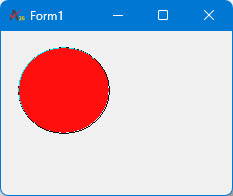
The Circle method can draw a circle, an ellipse or an arc. The relevant parameters for the circle shape are an X and a Y co-ordinate for the circle's center, a measure for its radius, a color for its outline, and a color for its fill. To draw a circle, you might say something like this:
FillStyle=aFormFillStyleSolid
PaletteMode=aFormPaletteModeHalftone
Circle( ,55, 55, 40,,,, aclrBlack, aclrRed) ! Note that irrelevant parameters are blank
If you place this code in the Form.OnPaint event and run it, this would generate:
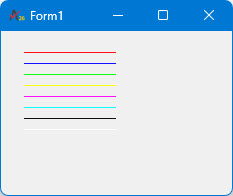
The Line method, as its name would suggest, allows you to draw lines. The relevant parameters for the line are an X and a Y co-ordinate for the starting point, an X and a Y co-ordinate for the ending point, and the color of the line. To draw some lines, you might say something like this:
Line( 20, 20, 100, 20, aclrRed )
Line( 20, 30, 100, 30, aclrBlue )
Line( 20, 40, 100, 40, aclrGreen )
Line( 20, 50, 100, 50, aclrYellow )
Line( 20, 60, 100, 60, aclrMagenta )
Line( 20, 70, 100, 70, aclrCyan )
Line( 20, 80, 100, 80, aclrBlack )
Line( 20, 90, 100, 90, aclrWhite )
replacing the circle call with calls to output lines would generate:
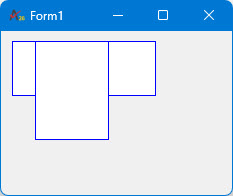
The Rectangle method allows you to draw rectangles. The relevant parameters for the rectangle are an X and a Y co-ordinate for the top left corner, an X and a Y co-ordinate for the bottom right corner, a color, and a fill color. To draw a rectangle, you might say something like this:
Rectangle( ,10,10,,135,60,aclrBlue,)
FillStyle = aformFillStyleSolid
Rectangle( ,30,10,,94, 100,aclrBlue,aclrWhite)
and this would generate:
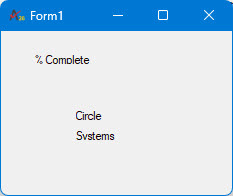
The DrawText method allows you to put text on the form background. The font and size can be set in the Fonts tab of the form's Properties panel at design time, or by explicitly setting the form's Font property at runtime. The relevant parameters for DrawText are the text itself, an X and a Y co-ordinate for the top left corner where text will be placed, and an X and a Y co-ordinate for the bottom right corner. To draw some text on a form, you might say something like this:
DrawText("% Complete",,30,21,16,10)
DrawText("Circle",,65,72,16,10)
DrawText("Systems",,65,90,16,10)
and this would generate: