Drawing Tab Properties Reference
This section provides background for several of the concepts in the Form Properties Drawing topic, including:
For a full treatment of drawing text and graphics on a form, see Form Text and Graphics.
Inheritable Properties
Form controls inherit properties from the form. For example, if the form background color is set to light gray, form controls inherit that background color and will have a light gray background also. You can think of form properties as being inheritable properties used by all elements within the form.
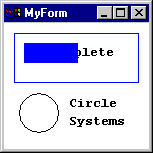
These properties can be overridden as shown in the following example. The appearance of drawing commands (lines, arcs, circles, text, and so on) are controlled by a combination of:
|
|
The partially completed form shows the effects of using just the default DrawMode properties—without any code-specific overrides.
Several form properties have been modified from their default values. The modifications include: Normal to bold text and background color to white.
|
|
|
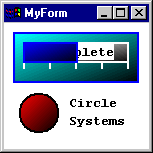
Additional form (global) properties are modified (DrawWidth from 1 to 2 pixels and FillStyle from transparent to diagonal cross) to produce this image.
Note how the changes in form properties are applied to all drawing objects.
|
|
|
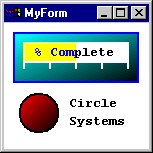
Selected drawing objects are modified—overriding the global settings.
Two rectangle FillStyles and one rectangle DrawMode are overridden to achieve the final result.
|
Z Order Imaging
The image you see on your computer display looks like a flat, paper-like image. In reality, the image is composed of many image layers. "Z order" is a relative ordering which determines how multiple layers overlay one another. Three major graphical layers are associated with forms. The back layer is the drawing space where the results of the graphics methods are displayed. Next is the middle layer where graphical objects and ALabel controls are displayed. The front layer is where all nongraphical controls like AButton, ACheckBox, or AListBox are displayed. Anything contained in a layer closer to the front covers anything contained in the layer (s) behind it. "Z order" arranges objects only within the layer where the object is displayed. Objects can be sent to the front or the back of the Z order within their original layer.
For example:
|
AForm.ARadioButton.ZOrder = 0 ! Puts radio button at the front of the Z order.
|
|
AForm.ARadioButton.ZOrder = 1 ! Puts radio button at the back of the Z order.
|
Logical bit-map drawing operations
At first sight, the modes under which drawing operations take place may look a little forbidding. The DrawMode property (found on the Drawing tab in Form Properties) has 16 possible settings, 0-15, with such scintillating and easy-to-distinguish names as MaskNotPen and MaskPenNot. How do you make sense of them? The secret is that of these 15 settings, only six are truly important; the others are for the most part inversions or combinations of these six. Each mode determines the nature of the graphic "pen" with which objects are drawn.
The essential six DrawMode properties are as follows:
|
Constant
|
Setting
|
Description
|
|
Blackness
|
0
|
Black pen.
|
|
Invert
|
5
|
Inverse of the display color.
|
|
XorPen
|
6
|
Combination of the colors in the pen and in the display color, but not in both.
|
|
Nop
|
10
|
No operation -- essentially, the pen is turned off.
|
|
CopyPen
|
12
|
The default pen setting. The color is specified by the ForeColor (foreground color) property.
|
|
Whiteness
|
15
|
White pen.
|
With these six DrawMode properties, you can accomplish most of the drawing tasks necessary for the creation of a form. With the addition of mode 3, NotCopyPen, and using mode 6, XorPen, you can also devise credible animations. (NotCopyPen draws the inverse of the line over the background; XorPen has the unique characteristic that if you draw a line twice with it, the original background re-appears.)
If you have time, experiment with the remaining DrawMode properties; the results are less predictable, but for some applications, they are just right. They are:
|
Constant
|
Setting
|
Description
|
|
NotMergePen
|
1
|
Inverse of setting 14 (MergePen)
|
|
MaskNotPen
|
2
|
Combination of the colors common to the background color and the inverse of the pen.
|
|
NotCopyPen
|
3
|
Inverse of setting 12 (CopyPen)
|
|
MaskPenNot
|
4
|
Combination of the colors common to both the pen and the inverse of the display.
|
|
NotMaskPen
|
7
|
Inverse of setting 8 (MaskPen)
|
|
MaskPen
|
8
|
Combination of the colors common to both the pen and the display.
|
|
NotXorPen
|
9
|
Inverse of setting 6 (XorPen)
|
|
MergeNotPen
|
11
|
Combination of the display color and the inverse of the pen color.
|
|
MergePenNot
|
13
|
Combination of the pen color and the inverse of the display color.
|
|
MergePen
|
14
|
Combination of the pen color and the display color.
|
PaletteMode
Although many computers today have displays capable of displaying thousands of colors ("high color") or millions of colors ("true color"), there are still plenty of machines out there that can only display 25
You can choose how you want the system to select the colors for display by setting the PaletteMode property of the form. All controls on the form, especially including the AImage control, will be displayed based on the PaletteMode.
The settings for PaletteMode include:
|
Halftone
|
This is the default mode for forms. It relies on the system's halftone palette -- an array of colors that has "something for everyone." However, forms or images which rely on the presence of all 256 colors in their own palette may lose detail when displayed in halftone mode.
|
|
UseZOrder
|
Z Order sets out the layering of objects on the form, from front to back. When UseZOrder is the PaletteMode setting, the palette of the front-most control is the one in effect. This will result in optimal display of the front-most control, but may mean that backgrounds may appear dithered.
|
|
Custom
|
You can set a custom palette for the display of colors by using a 256-color image. The colors of the image will become the active palette. This has to be done in procedural code, for now; ATEasy does not have a dialog box for selecting a picture for the custom PaletteMode setting.
|
|
Container
|
The palette of the form and its controls is set to the palette of its container. If the container does not have its own palette, the palette is set to Halftone mode.
|
|
None
|
No palette is set at all.
|