Create your form.
Click
on the Menu item  in the
Controls toolbar.
in the
Controls toolbar.
Drag in the form client area.
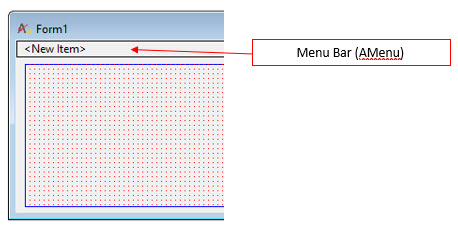
The menu will appear in the
top border of the form, with one item visible, the heading, <New
Item>.
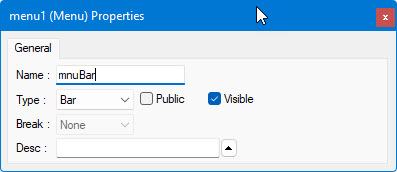
Set the properties of the
Menu Bar and rename from menu1 to mnuBar:
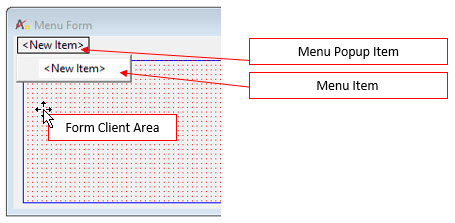
Now click on <NewItem>,
by default the menu item is a Popup type and a Menu item is display
below the popup:. There are three types of menu items:
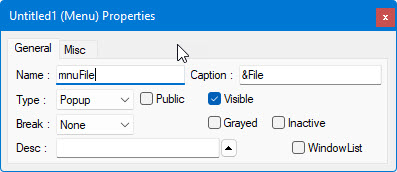
Set the popup menu item Name
to nuFile. We use mnu as a prefix for menu items objects/ Set the
Caption to '&File' (the & is used at run time enabling to
select the menu using Alt+F
key combination) as shown here from its properties window:
There are three types of Menu Items as shown when you drop the Type
combo box:
Item. Menu item linked to an action / procedure event that get executed when the item is clicked at run-time.
Separator. Display a line to separate menu items to logical groups..
Popup. This menu item used to create a sub menu (popup menu) that contains other menu items. You can add code to this menu item OnClick() event to enable/disable or rename some of the menu items below this item.
Add a menu item to the
File Popup. Click on the New Item below File and open the properties
and set the properties as follows:
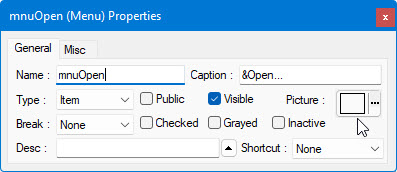
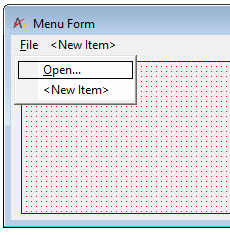
The menu should look
like this:
Next step is the implement OnClick() events to menu items is described here: Programming Menu Events