 to insert a new form into the list of forms in the left-hand Explorer pane of the ATEasy window.
Use the Insert Below button to insert a new form into the list of forms in the left-hand Explorer pane of the ATEasy window.
When designing a form in ATEasy, you will see the "form view" of your new form within the ATEasy workspace area.
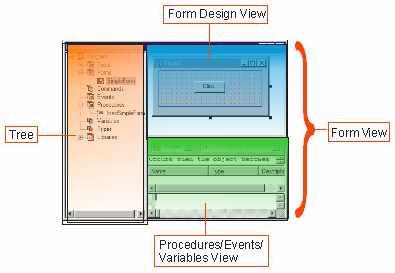
The combined view, within ATEasy, of the form design view and the procedures/events/variables view for a form.
A window containing the design-time view of the new form. It is used for designing the layout and controls of the form.
A collection of panes including a combo box for the form object and controls belonging to the form, a combo box for events belonging to the form, a window for variables, and a window for procedure code.
Here is a detailed breakdown of the Form Design View and the Procedures/Events/Variables View.
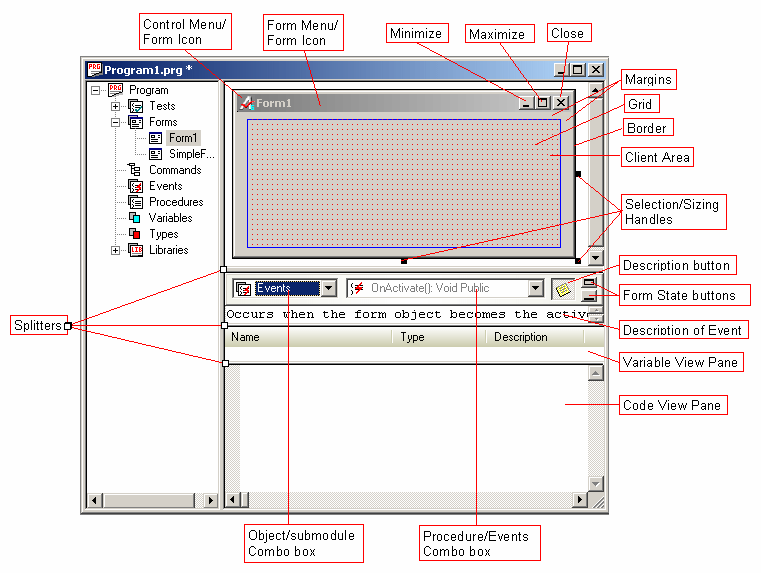
Clicking on this icon while the form is loaded gives you a popup menu, consisting of the following choices for the form window: Restore, Move, Size, Maximize, Minimize, and Close.
The blue bar containing the caption of the window. It is grayed out when the window to which it belongs is no longer the active one.
A button which makes the window shrink to its minimum possible size, represented in a box on the taskbar.
A button which makes the window expand to its maximum dimensions within its container.
A button which makes the window close and disappear.
The margin is the area of the form between the outermost border of the form and the client area of the form. No controls can be put in this area. It is strictly for enforcing "white space" around the edges of the form.
A matrix of dots, spaced at five-pixel intervals, in the background of the form design view window's client area at design time. The grid is meant to help with the spacing and alignment of controls placed in the client area. It is not visible when the form is viewed at runtime.
The outermost edge of the form. Controls cannot be placed there or in the margins it surrounds.
The area of the form within which controls can be placed.
These black squares indicate that a given control or window is selected. By clicking on and dragging one of these squares, you can change the dimensions of a control or window.
Movable bars dividing the windows into panes. Using splitters, you can change the height of the windows' panes.
Textual description of the event currently selected in the Procedures/Events combo box.
Displays any variables which have been entered for the current procedure.
Text input area in which code for the current event's procedure can be entered and viewed.
Pulldown menu showing the various events applicable to the form object selected, for which procedures can be coded.
As a new feature of ATEasy 4.0, The procedures (not events) combo box allows the drag and drop capability. After pulldown the list box, you can drag and drop a procedure to re-arrange the list of procedures.
Pulldown menu showing the various objects -- including the form and all the controls on it -- for which events can be selected and procedures coded.
These buttons allows you to change the Form View by minimizing or maximizing windows so that you does not have to so it manually when you do not use certain windows. For further information see Form Window State Buttons.
This allows you to show or hide the description button - it also indicates whether it have been filled or not by displaying either empty or non-empty buttons.