In the ATEasy workspace, select the Libraries submodule under which you want to insert the DLL.
Right-click and select  (Object Below). The Insert Libraries dialog box appears:
In order to use a DLL in an ATEasy application, you must insert the DLL into a module Libraries sub-module in that application.
To insert a DLL into an ATEasy module:
In the ATEasy workspace, select the Libraries submodule under which you want to insert the DLL.
Right-click and select (Object Below). The Insert Libraries dialog box appears:
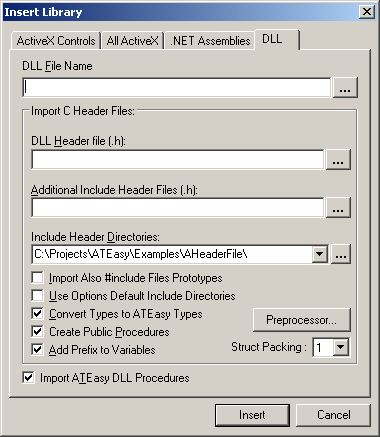
Click the DLL tab.
In the DLL filename group box, type the DLL filename or click  and browse to the DLL's location. After you locates the file click OK the filename text box will be filled with the DLL file path. You can revise the filename to specify the DLL filename as absolute path, relative pr just the DLL file name (no-path). ATEasy will locate the file at run-time as the following DLL File Search Order:
No Path. If you enter a filename with no file path (directory), ATEasy searches for the file in the following directories in order to locate the DLL at run-time or design-time:
The Windows directory.
The Windows system directory (the directory containing such system files as GDI.EXE).
The directories listed in the PATH environment variable.
Select the DLL and click Open if you select DLL from the browse Open dialog.
For the description of Import C Header Files: section, see Importing DLL Functions and Data Types from C Header Files.
(v. 7) If the DLL is an ATEasy DLL, check "Import ATEasy DLL Procedures". If the DLL is indeed an ATEasy DLL, all its exported functions will be imported automatically; that is, under DLL submodule procedures they will be inserted. If the DLL is not an ATEasy DLL, the check will be ignored.
Click Insert. ATEasy inserts the DLL under the Libraries submodule of the selected module.
Note: At run time we locate the DLL in the following order:
If the DLL has a specific path (inserted via Browse button), we look at the path.
Project EXE folder.
The Windows directories.