Importing DLL Functions and Data Types from C Header files |
Version 5 |
In ATEasy 5.0 and beyond, the user can define DLL procedures during inserting DLL by specifying DLL C header file containing DLL function prototypes.
Notes:
The Import C Header File dialog is not intended to 100% precise and cannot be that way since the C data types are not defined that way for example 'Short *' parameter type (pointer to a short) can be in ATEasy 'Var Int', 'Var Int[]' or 'Val Int[]'. Microsoft came up with ActiveX/COM type libraries and .Net assemblies to avoid this and provide a precise description of data types.
Make sure the header file contains legal C statements.
The import will not work properly when attempting to import C++ statements (i.e. classes etc). There is no standard way of exporting C++ classes from a DLL. C++ header files are not the same as C header file, C++ DLL are meant to be used only by C++ language, export functions are decorated and cannot be called by non-C++ languages. If you have a C++ DLL and header file that you need to call from ATEasy, create a C header and a DLL that calls the C++ functions and use it from ATEasy instead of the C++ header.
ATEasy provides the Ambiguous C Data Type dialog to help finding the C data type that best match ATEasy data type.
You should always check the imported definitions (functions, parameters and data types) by comparing it to the header file content and correct them manually (using the Variable Properties) after Import is complete. This will help you avoid memory exceptions, stack corruption and other problems when using the DLL.
If the user enters DLL's header file, ATEasy will read its function prototypes and relevant constants and typedefs from the main header file as well as its include files and any additional include files. This feature will create the following DLL submodules:
Procedures - will include every function prototype in the DLL header files being specified.
Types - Typedefs defined in the header file and other include files that are used by the DLL functions (including struct, enum and typedef data types).
Constants - #define constants in the header files.
This page contains the following sections of information:
This feature will best be used when creating a driver with its DLL: instead manually create each procedure, now ATEasy will do it automatically. But after DLL is created, you can also perform this Importing function ( via Insert or context menu), see below.
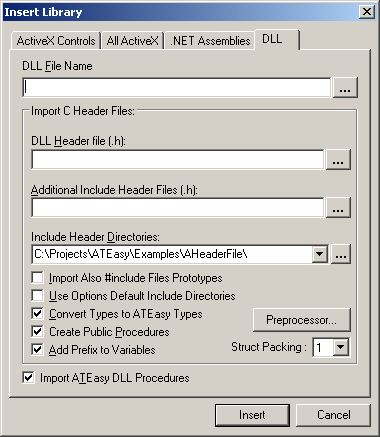
The following will describe Import C Header Files: section, additional steps after Step 5 of Inserting a DLL topic during Inserting a DLL.
DLL Header file (.h):
enter C DLL main Header file name or click  to locate the file - if this is empty, ATEasy
will simply insert a DLL (no functions, types or constants will be
defined).
to locate the file - if this is empty, ATEasy
will simply insert a DLL (no functions, types or constants will be
defined).
Additional Include
Header Files (,h): optionally, you can enter additional
Include header files which contain data types being used by DLL function
prototypes in the main header file. If you have more than one,
use delimiter ";".
Include Header Directories:
you can specify Include Header directories. They are to be used
to locate include files specified in Step 1and 2 as well as those
in #Include in header files during Import.
Import Also #Include
Files Prototypes - this check box allows the user to import
prototypes in the #include files as well. By default, only the
prototypes of the main header file in the step 1 will be imported.
Use Options Default
Include Directories - this check box allows to use Default
Include directories specified via Menu Options\Directories.
Convert Types to
ATEasy Types - the user can check to convert the user defined
types of DLL to ATEasy
types, instead of creating Types.
Create Public Procedures
- if the user wants to make all DLL procedures to be Public for use
outside of the module (e.g. program call DLL procedures defined in
a driver), check this. By default, they will not be Public.
Add Prefix to Variables - during import, this check box allows to add ATEasy Variable Prefixes, for example, d for Double Data Type, l for Long, dw for DWORD, see Variable Naming Conventions.
For further information for this dialog, please refer to Insert Library Dialog - DLL Page.
Optionally, after DLL inserted, with the following context menu (right
mouse button click) or the Insert menu Import
DLL Header File (.h)..., the user can import additional C Header
files for an existing DLL under Libraries:
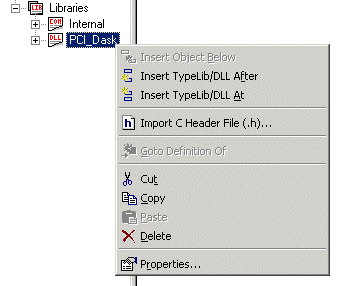
The following dialog will appear after clicking the menu, Import C Header File (.h),
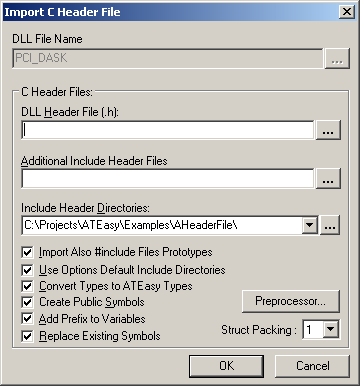
This dialog is exactly same as above Insert DLL dialog, except that it shows the existing DLL name (read only) and has one additional checkbox at the end. If you want to remove existing symbols/procedures of the DLL, click the check box "Replace Existing Symbols". The rest has the same functionality. For detailed description for this dialog, see Import DLL Header File Dialog.
During importing function prototypes and typedefs, if ATEasy encounters any ambiguous or unknown types, it puts up the following dialog for the user to specify the desirable type so that ATEasy can handle appropriately:
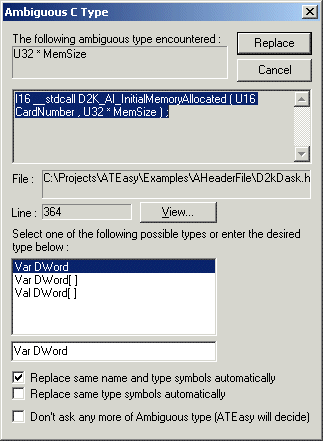
First, it shows the ambiguous or unknown type found, the place it found, and its' header file name and line number. Then a list of suggestions follows for the user to select. If none of suggestions is correct, you can enter a desired type in the edit box below. Once you are ready, click Replace button, which will end the dialog. Clicking Cancel will ask you to confirm the cancelation of the operation of importing.
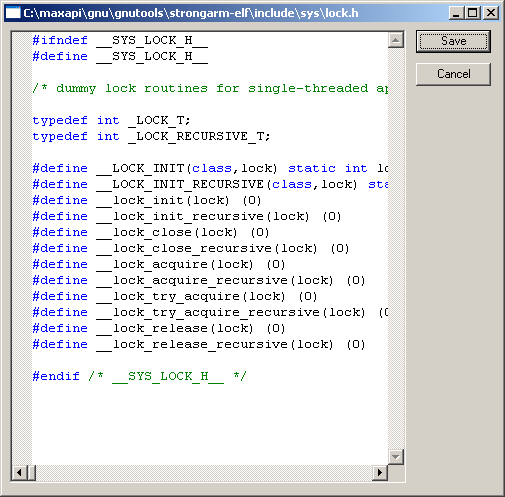
The View button allows you to view the header file - specifically locating the line it reported.
The following options that you can choose for replacing ambiguous or unknown types:
If you want to replace the same name as well as the same type symbols elsewhere with the type that you are selecting, click the first checkbox. For example, as in the dialog, all the subsequent symbols of name 'filename' and of type char * will be replaced with the type selected here.
If you want to replace only those of the same type, click the second checkbox.
By setting the third option, this dialog won't come up anymore, letting ATEasy decide the type. This option would be useful when one reads a big file or many files.
For further description for this dialog, refer to Ambiguous C Type Dialog.
At the very beginning of tasks of reading header file(s) or importing DLL function prototypes, the following dialog will come up to show the progress of reading header files. It also allows you to cancel the whole process for it could take a long time to finish the task.
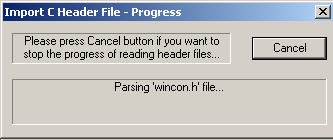
As importing each Header file, when the parser ran into an invalid token, instead canceling altogether the importing process, ATEasy display the following message and options the user can choose from:
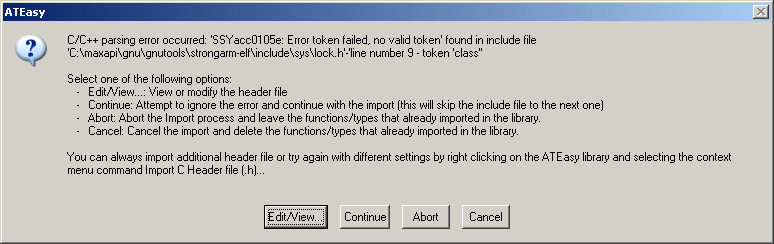
There are four options the user can choose from:
Edit/View... : this allows you to view or modify the header file - see an example below:
Continue : this allows you to ignore the header file and continue
Abort : Abort the process and do not delete imported functions and types
Cancel : Cancel the Import process and delete everything