This License setup dialog box is displayed from the About ATEasy menu item under the Help menu (refer to the About ATEasy Dialog). It allows you to setup an ATEasy license and contains the following fields :
Enter a person's name for which this license is for.
Enter the name of your organization.
The ATEasy Serial number currently installed. This number is used to identify your license serial number. Use this number when using the support portal. If a number is displayed it means that a license was installed.
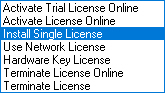
Select one of the following operations::
The drop list provide a way to activate 30 days evaluation/trial license, online or manual activation of your license, network license. It also supports online or manual termination of your license (usually to transfer the license to another machine). Refer to License Setup on how to setup each license type or operation supported by this control.
Used with non-online activation. Once you received a license string or file from Marvin Test Solutions, you can enter here to complete the license setup. The browse button allows you to locate and select the license file.
Used with non-online activation. An ATEasy Computer ID is displayed in this field - refer to License Setup on how this computer Id is used to generate a license.
Used with online activation. The user email, and password of your M@gic account (marvintest.com/magic). You also need to specify ATEasy Serial Number associated with the license you want to activate. The Serial number displayed on your packing list, Purchase Order documents or in your online account.
Used with network license. Select the server name from the License Location list or type its network path (DomainName/ServerName or using network address IP/IP for example '10.10.1.1/10.10.1.4'). Refer to License Setup on detailed information on how to setup Network license.
Used with Hardware (USB/LPT) License. This button allows to install a device driver needed for communication with the Hardware key. Refer to License Setup on detailed information on how to setup Hardware Key license.
Refer to License Setup on detailed information on 30 Days Trial License. The trial license provides a one-time almost full ATEasy functionality for 30 days. You are allowed one 30-day trial period while your license is being purchased or while evaluating ATEasy. Trial license should not be used for normal use.