To convert your ATEasy 2 application to the new ATEasy follow the following steps. Make sure to follow the steps below in the exact the order otherwise the conversion will not be successful:
Create a new project using the File, New.. menu command. That project will become the Active Project (shows in bold in the workspace window.
Save the project file by clicking File, Save. We recommend to save all your application files (.prg, .sys, .drv, .prj. wsp) that were migrated or created to a single, and a new application folder.
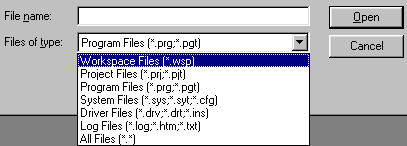
Open and add ATEasy 2 system file (.CFG file) into the new ATEasy project using the File, Open... menu command. Make sure the Add to Project is checked in the file open dialog:
:
During the process of converting the system file the ATEasy 2 driver files (.INS) that are configured to your old system will be also converted. If ATEasy cannot find the INS file you'll be prompt to enter a new path for them. You will also be prompted to replace any 16 bit DLLs that were used by the old driver files to 32 bit DLLs. ATEasy will scan your system and driver file code and make changes during the conversion. See the Changes from ATEasy 2 to the new ATEasy for more information.
If you need a test executive user interface to your application insert the TestExec.drv and Profile.drv (Profile driver must be inserted before the Test executive).
Insert your ATEasy 2 program (.PRG) files into the new ATEasy project (similar to step #3) . ATEasy will scan your program code and make changes during the conversion. See the Changes from ATEasy 2 to the new ATEasy for more information.
Save all of your files by clicking on the Save All from the file menu. We recommend to save all files in a single folder (the application folder). Some file extension for ATEasy 2 files differ from those in the new ATEasy:
Type of File |
ATEasy 2 |
ATEasy 3 |
Program Files |
.PRG files |
.PRG files |
System Files |
.CFG files |
.SYS files |
Driver Files |
.INS files |
.DRV files |
At this point the automatic conversion of ATEasy is complete. You will need to check you code for compiler errors using the Build menu command and correct all problem that the compiler found. After this step is complete you can run and debug your application a fix all run-time error that may be found. Once this is done you can distribute the application as a stand alone application file EXE.