ATEasy parameters are name-value pairs that can be used as constants to retrieve configuration information about the driver at runtime.
Unlike variables, the values of parameters are fixed when you enter them into the Parameters page. Also, unlike variables, the values of parameters are limited to two types: string and numeric.
There are two steps involved in setting up parameters:
Creating Parameters
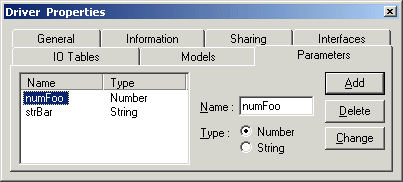
You can create parameters using the Parameters page of the Driver Properties window. Enter the name of your parameter in the text box, choose the type (numeric or string), and press Add.
Assigning values to Parameters.
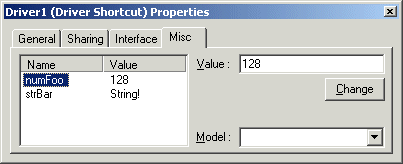
You can set driver parameter values in the Miscellaneous tab of the Driver Shortcut Properties pages. Highlight the name of the parameter to which you want to assign a value. Enter the value in the Value textbox. Then, press Change to assign the value. Trying to assign a string value to a numeric parameter will result in a type mismatch error. Trying to assign a numeric value to a string parameter is acceptable, since a number is simply a string of numeric characters.
Parameters are members of the Driver to which they belong. As such, they can be addressed or referenced using dot notation, just like any other members. For example, if you have the parameter NumFoo set to the value "1" on the Parameters page for Driver1 and want to retrieve the value of the parameter, you can reference it with the expression:
value = Driver1.Parameter("NumFoo")