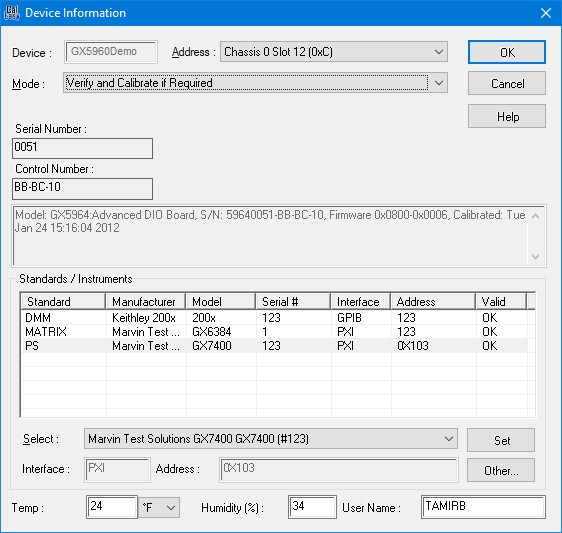
The Device Information window is displayed after starting the selected program. The form is used to select the device for calibration or verification as well as select the standard instruments used by the program.
The following screen capture shows the Device Information form:
Device Information window
Enter the required fields as described here:
1. Select the Mode as follows:
A. Select Verify if you wish to verify calibration for the selected device. Verify will not change the device calibration information and will not update the device’s non– volatile memory. No certificate will be generated in this mode and only the Verification portion of the program will run.
B. Select Verify and if Passed, Update Calibration Date if you wish to verify the calibration for the selected device and update the calibration date if the verification passes. This mode will update the non-volatile memory of the instrument and will generate a certificate if the verification passes.
C. Select Verify and Calibrate if Required. In this mode, CalEasy will first attempt to verify calibration by running the program Verification task. If the device requires calibration, the program will write and update the device’s non-volatile memory with the new date and will issue a new certificate. If the verification task fails, CalEasy will continue and run the Calibration task. Upon successful calibration, the program will write the new calibration information and date to the device’s non-volatile memory.
D. Select Calibrate Always to Skip the verification and calibrate the instrument.
2. Select the device’s address. Select the device by highlighting a device from the Address drop list. The selected device will also cause the device’s Serial Number and Summary to be displayed.
3. Select the standard instruments required to perform calibration. For Each instrument displayed in the Standards/Instruments list perform the following:
A. Highlight the instrument row (DMM in this example).
B. Select the instrument from the Select drop list and click on the Set button. If the Select drop list is empty, click on Other… to define a standard instrument as described in the next section: Standards / Instruments Window. Upon return, select the instrument and click on Set.
C. Repeat steps a – b until all of the required instruments are selected. Once all the instruments are selected the Device Information OK button will be enabled.
4. Enter the Temperature in C (Celsius) or F (Fahrenheit), type in the Humidity and enter your user name. These fields are used sometimes during the calibration or verification process and are also recorded in the calibration certificate and test log.
5. Click OK to start running the program and perform verification and/or calibration as selected.
 If you are unable location an instrument or
standard which you believe is connected to your system, please review
the Troubleshooting section.
If you are unable location an instrument or
standard which you believe is connected to your system, please review
the Troubleshooting section.