When you first start CalEasy you will need to enter a license string. To obtain the license string, create a Marvin Test Solutions support incident from 8Hwww.marvintest.com/magic/. You will need to supply the product Serial Number (shown in your packing list) and the Computer ID that is displayed at the bottom of the CalEasy License Setup dialog. Once you have received the license string, you can install it by entering the string when prompted.
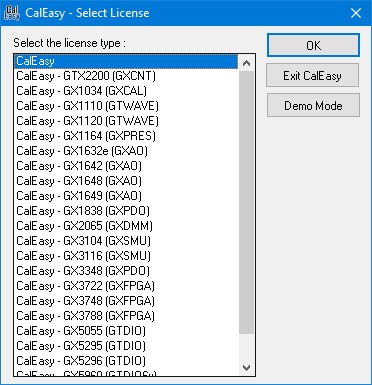
The following dialog will be displayed in no license was found:
CalEasy Select License dialog
Note: Other licenses may be displayed depends on the version of CalEasy installed.
Select the license you purchased and click OK. Next, the CalEasy License dialog is displayed showing the Computer ID you will need to provide. Once the license is received, enter the license string and click OK to complete the license installation.
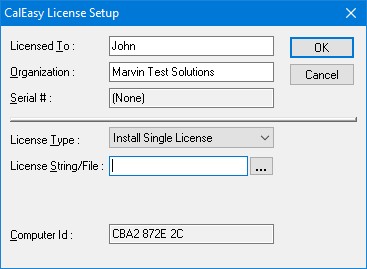
CalEasy License Setup dialog
Following a successful license installation, the Main CalEasy window is displayed as explained in CalEasy Main Window section.