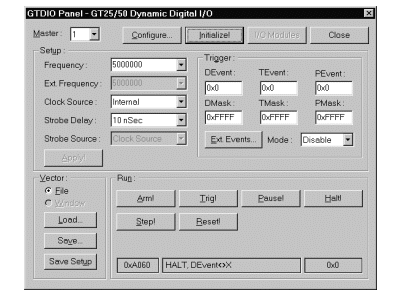
When software installation is complete, a Program Manager group called DIOEasy appears on your screen.
1. Double-click on the GT-DIO Panel icon to activate the GT-DIO Virtual Front Panel.
Note: For proper operation of the software, a temporary directory should exist on the hard disk and a "SET TEMP= " command listed in your autoexec.bat file. Before proceeding, check this out and if it is missing, create a temporary directory and write an appropriate line in the autoexec.bat file. The temporary directory is used to store temporary files during DIOEasy operation. The temp directory and its drive should contain enough disk space for DIOEasy operation.
The GT-DIO panel window opens:.
2. To configure the installed board(s), click Configure …. The DIO Configuration window opens, as shown in the figure below.
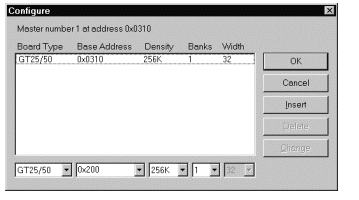
GT-DIO Panel Configuration Window
3. Insert the board(s) parameters in the configuration table (see the figure above.) Beginning with the Master board, configure each installed board with the following steps:
a. Type the base address.
b. Select the density from the drop down combo box and type the number of banks installed (from 1 – 4).
Click the mouse or use the Tab key to move the cursor from field to field.
c. Click Insert to add the board(s) to the configuration table.
Note: The base address can be typed in two formats, hex and decimal. For example, the hex format would be typed as 0x310.
4. Click the Close button (X) to close the DIO Configuration window.
5. Click Initialize! to accept the configuration (see GT-DIO Panel Window).