These basic steps are required to install and configure a DIO board in the host PC. Complex steps are further explained in the following Specific Procedures section.
Before installing a DIO board in the PC, configure it as follows: (See detailed procedures in following sections):
1. Tag each board or record its serial number.
2. Set a unique I/O address for each new DIO board. See Specific Procedures.
3. Record each installed board’s unique base address. Add new boards to the list as they are configured. Keep this list. It will be needed again! See Specific Procedures.
4. Install or upgrade SIMMs as necessary. See Specific Procedures.
5. Mount I/O Modules as necessary. See Specific Procedures.
6. Mount a Timing Module to configure a Master as necessary. See Specific Procedures.
7. If installing into an existing domain do steps A – D below, otherwise continue with step 7:
A. Power down the PC and remove the cover.
B. Remove any cables attached to existing rear DIO board connectors.
C. Remove DIO board retaining screws and gently dislodge boards from their ISA slots.
D. Remove boards if necessary.
8. Lay boards out in slot order. For best results, the Master should have equal number of salves from both sides. New slaves should be added at the ends.
9. Carefully insert the Master into its ISA slot position.
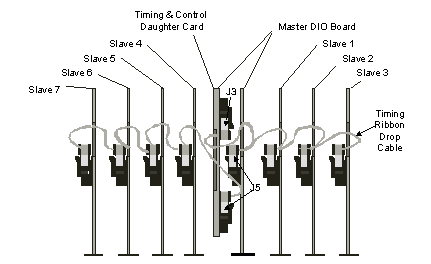
10. Position Slave DIO boards above their ISA slots. Do not insert the boards fully at this time. String the Timing cables straight across on both the left and right side of the Master. (See the figure below). The cable has limited slack, so do not yank it. The Timing Module has twin Timing Cable headers for the left and right Timing cables, then perform steps A – D below:
A. Insert one end of each Timing cable into either a left or right 20 pin header on the Timing Module, whichever side is more convenient.
B. Insert the second connector into the Master board’s 20-pin header.
C. Continue inserting each Timing connector, in order, into the 20-pin headers of each Slave board.
D. Insert each Slave board into its bus slot after it is connected to the Timing cable.
11. Make certain all the DIO boards are seated properly in their bus slots. Fasten all retaining screws to secure the board edge brackets.
12. Configure the DIO Driver and verify domain readiness. See Verifying the Installation.
13. Reattach the PC cover and rear DIO board connectors.
Timing Cable Interconnection Diagram
DIO broads may also be used in GTXI-700 or GT7700 chassis. However, the GTXI form factors and connectors are different than PC board slots. The DIO board is first configured and then mounted on a GTXI ISA carrier (GT7020) to adapt the DIO board for GTXI-based instrumentation.
DIO boards are configured as above for a PC installation with these exceptions:
● After configuration, each DIO board is mounted on a carrier.
● Each carrier’s offset address must be set before installing it in a GTXI slot.
● The Timing cable is strung through carrier perforations before inserting the carrier into the GTXI chassis. There is no overhead access or clearance for connecting Timing cables into installed carriers.
Carriers are then inserted into GTXI-type chassis using special procedures. See Specific Procedures.
Refer to your GTXI documentation for further information on mounting ISA boards on GTXI carriers and configuring carrier board offset addresses.
Note: GTXI carrier boards (GT7020) should not be confused with GT5900 carrier boards used in PCs. These boards are physically and functionally very different.