.gif "Virtual Panel (Initialized)")
After the board is initialized, the panel is enabled and will display the current setting of the board. The following picture shows the Main tab settings:
Virtual Panel (Initialized)
Frequency: Set/displays a range of desired clock frequencies from 5 Hz to 50 MHz (default). This control is disabled if Clock Source is set to External.
Clock Source: Set/displays the clock source: Internal, External or Program by External.
Internal generates a clock at the frequency specified by the Frequency selection control. The clock is synthesized from an internal 10 MHz reference.
External uses a remote clock source as the clock directly. No frequency synthesizes is involved.
Program by External generates a clock at the frequency specified by the Frequency selection control. The clock is synthesized from an external reference. The external reference frequency is entered into the Ext. Frequency control.
Strobe Delay: Select the delay between the strobe and clock. The DIO family determines what delay selections are available. This control is not available if the Strobe Source control is set to External Strobe.
Strobe Source: Select either Clock Source or External. This option is available only if the Clock Source control is set to External. If Clock Source is selected, then the strobe is synchronous with the external clock, but advanced by the Strobe Delay setting. If External Strobe is selected, then the strobe is timed externally and assumed to be asynchronous with the internal clock (although it may be synchronized externally). Because the strobe frequency is unknown, Strobe Delay is not available.
Ext. Ref Freq: Set/displays the external source’s reference frequency. The internal reference frequency is 10 MHz. The clock and strobes are synthesized from this reference. This control is available only if the Clock Source selection box is set to Prg. by External (Program by External). Enter or select the external reference frequency in Hz from 1 to 60 MHz (50 MHz default).
Trigger Mode: set/displays the trigger mode. Use the Mode control combo box to select Disable, D level, T level, DT level or TD level. Events are used to set conditions for a board trigger
DEvent: Sets/displays the D register event, values are entered in decimal or in hex (using the “0x” prefix).
DMask: Sets/displays the D register mask, values are entered in decimal or in hex (using the “0x” prefix).
TEvent : Sets/displays the T register event, values are entered in decimal or in hex (using the “0x” prefix).
TMask: Sets/displays the T register mask, values are entered in decimal or in hex (using the “0x” prefix).
PEvent : Sets/displays the conditions that pauses the board Pause register event, values are entered in decimal or in hex (using the “0x” prefix).
PMask: Sets/displays the Puase register mask, values are entered in decimal or in hex (using the “0x” prefix).
See the board’s Theory of Operation in its user guide for an explanation of board registers and masks.
Click the Ext. Events to display the External Event Register dialog (see the figure Save Board Data Dialog Window) Use the radio buttons to select either External Lines (default) or X Register as an external source. By writing a value into the X Register, the user can simulate events on the External Event Line. The Actual Value text box displays the current value in the X Register as a hex number. To change that value, enter a hex or decimal integer in the upper text box and click Write. When entering a hex value, the first two characters must be “0x”. The Actual Value text box now displays the hex value of the number entered.
Clock Delay: Select the delay between the main clock and the clock. The DIO family determines what delay selections are available.
Strobe Delay: Select the delay between the strobe and clock. The DIO family determines what delay selections are available. This control is not available if the Strobe Source control is set to External Strobe.
Offset Delay(Gx528X /Gx529X only): Additional offset that advance or delay the specifed DIO board’s Clock and Strobe. The offset values vacan be set between -3.0 nSec to +3.0 nSec with resolution of 0.25nSec. The main purpose of this delaty is to ease timing aligment between DIO boards in a domain.
Sets the specified data source clock cycles delay
Mask Data (Gx529X only whne in Real Time Compare opearting mode): sets/display the number of clock cycles that the mask memory data will be delayed by from the clock.
Expected Data (Gx529X only whne in Real Time Compare opearting mode): sets/display the number of clock cycles that the expected memory data will be delayed by from the strobe.
Edge (Gx529X only whne in Real Time Compare opearting mode): sets/display the clock edge of rising or falling.
Source dropdown list: Sets/display the source or target for the DIO vector file. Select File (default) to work with a DIO or ASC file. Select Window to work with the current active window in DIOEasy. The window is made active by selecting it in Vector View. The choice affects operation of other controls in this group. The Window is available only if a Vector View window is active and the Panel is opened within DIOEasy.
Load/Save dropdown list: When File is selected, the DIO file that is loaded initializes the board. When Window is selected, the file opened in DIOEasy initializes the board. In file mode, Save… reads the board’s configuration and data and saves it to a DIO file. The default file extension for data read back from a board is DI, but the user can specify the extension, *.DIO, or any other.
When Window source is selected, the Save Board Data dialog opens (Figure below).
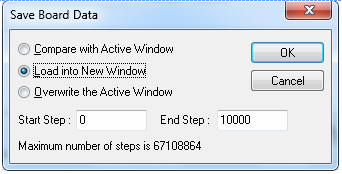
“Compare with Active Window” (default) compares vector differences between files opened in DIOEasy and board data. Differences appear as shaded cells in DIOEasy current Vector View.
“Load into New Window” writes DIO data to a new Vector View window while maintaining the previous one.
“Overwrite the Active Window” replaces data currently in the active window with data from the board.
This group has buttons for immediate function execution. It displays certain system parameters for all boards bound to the selected Master.
Arm: Changes board states from HALT to PAUSE.
Trig: Changes board states from PAUSE to RUN.
Pause: Changes board states from RUN to PAUSE.
Step: Advances the sequencer a single step.
Halt: Changes board states to HALT.
Reset!: Changes board states to HALT and restores the Master and Slaves to the default setup.
Set Counter: This button is enabled for GX5150 domains only. It sets the Program Counter to the hex or decimal step value entered in the text box at the right. Hex values are preceded with “0x”. The resulting Program Counter value displays in hex in the right window of the status bar. (See the Status Display topic below).
Status Display: The Status Display at the bottom of the Run group, has three text boxes: left, middle and right. The left box displays the Status Register contents as a hex code. Status codes are different for the GC5050/GX5050 and GX515X boards. See the DioReadStatusRegister function in Functions Reference for an explanation of codes. The middle box displays additional details concerning status and errors. See the same reference as above for details. The right box displays the Program Counter step number.