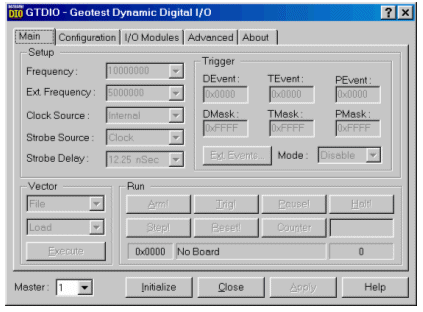
To verify proper DIO board installation, install the software first, and then use the Panel to configure the driver and initialize the board. If the board can be added to the driver database and successfully initialized, installation was probably successfully.
To access the Panel, DIO software must be installed. See
"Software User's Guide - Installation and Setup for the procedure.
A DIO board installation is successful if the driver configuration database can be updated and all boards can be initialized.
When software installation is complete, do the following to configure and initialize the new boards.
1. Double click the GTDIO Panel icon or open the Panel in DIOEasy (press F10 or select it under the Windows menu). The DIO Panel window opens (see SIMM Module Installation figure).
2. Select the Configuration tab.
From the Master selection box (bottom left). select a Master number (1 to 16) that is the same as the selector switch on the Master board you want to configure.
3. Configure the driver database for the newly installed board(s). For information on configuring the DIO board(s), see the next topic, Configuring DIO Boards. This is necessary for newly installed boards or whenever changing any of the boards selector switch settings.
4. Click Initialize (see SIMM Module Installation figure) to accept the domain configuration.
5. If the new DIO board(s) can be successfully configured and initialized, installation is successful, the memory density and number of SIMMs displays for each board.Configuring DIO Boards
To configure DIO boards, do the following:
1. Double click the GT-DIO Panel icon or open the Panel in DIOEasy (press F10 or select it under the Windows menu). The DIO Panel window opens (see the figure below)
GT-DIO Panel Window
2. Select the Configuration tab, it displays all configured domain boards for the selected Master (see the figure below).
3. Select a board family to configure in the list box (GX5150). The Master boards is the first in the list box.
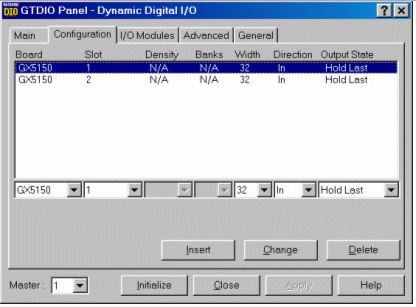
Configure Window Displaying two GX515x boards
5. If a board has not been configured, it does not display in the list. To register a new board, enter the proper data in the combo boxes and click Insert. The new board appears with the entered parameters. The user can select the board type, slot number width, direction and Output State. Duplicate slot numbers results in an error message.
6. To change a board’s configuration, select it. The board’s current parameters appear in the combo box. Select new parameters as required, then click Change. The new board configuration now appears in the list box. Duplicate base address results in an error message.
7. To delete a board’s configuration, select it and click Delete. The board is no longer display in the list.
Here are some key items about the list box:
● The list box displays up to eight DIO GX515x DIO boards.
● The first line always displays the Master board. Column headings are Board Type, Slot number, Density, Banks Width, Direction and Output State.
● Board type can be GX5150 (for GX5150 or GX5151), GT5150 (for GT5150 or GT5151) or GT25/50 (for GT25-DIO or GT50-DIO) or GT5900 (see the GT I-O Modules and Interfaces User's Guide (ISA)).
● Density and Bank specify a board’s memory configuration. They are not displayed for GX515x boards until the board is initialized. After initialization, the amount of installed memory is read from the board and registered automatically.
● GX515x Width can be 8, 16 or 32 channels, as selected.
● GX515x Direction can be In or Out.
● GX515x Output State can be set as follow: Hold Last, Hi Z on Halt, Hi Z, Zero.
8. Repeat steps 1 – 6 for all domain board configurations that need to be added, modified or deleted.
9. Click Apply button to save the configuration in the driver configuration database.
Note: After initialization, Density and number of Banks will be read from all boards and displayed properly for each one. |