This procedure is for GT25/50-DIO board users and GT5150 board users who require I/O Module functions. Other users may skip this section.
Each Carrier requires a free ISA slot. This slot can be located in the host computer or in a GTXI chassis, as appropriate for the host environment. A GTXI or GT7700 chassis installation requires that the GT5900 be mounted on a GT7020 ISA Carrier.
The main steps for installing a GT5900 Carrier are:
1. Configure the board.
2. Install the hardware.
3. Configure the software.
4. Connect.
GT5150 boards have I/O module daughter cards installed on the board. This allows for non-TTL logic family signal levels for the I/O lines.
The timing and control lines are, however, TTL and the GT5900 may be used to translate these signals to non-TTL logic family levels.
GT25/50-DIO boards connect UUTs at moderate current TTL levels. I/O modules can be used for additional load handling capability or other I/O functions that were discussed in the section I-O Modules.
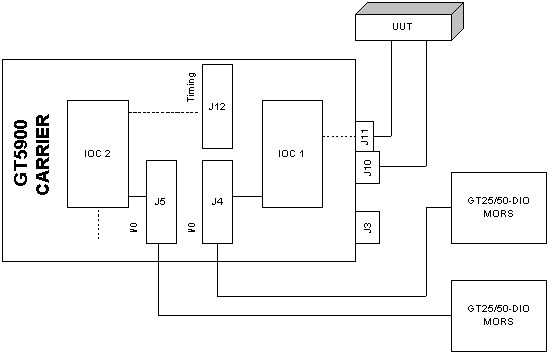
GT25/50-DIO boards cannot host I/O modules directly. Instead, a GT5900 ISA Carrier board, which hosts up to two I/O modules, is inserted between the DIO board and the UUT (in the figure GT5900 Carrier Configuration). A Carrier with two mounted I/O modules serves two DIO boards, or up to 64 UUT channels (connector pins).
In other configurations, I/O Module number 1 (IOC1 in the figure GT5900 Carrier Configuration) can also interface to a GT25/50 Timing module through a dedicated header, J12, or to a GT5150 Timing Module at connector J3.
In the figure GT5900 Carrier Configuration, J3 is used only for a GT5150 Timing module (GT5150). J4 and J5 are headers for GT25/50-DIO connections.
A GT5150 Master board hosts one I/O module for data signals. Its Timing module provides native TTL voltage levels that are not handled by its I/O module. Timing signals are available at the end bracket connector. Non-TTL timing I/O can be handled by an off-board I/O module. The Carrier provides a host for this off-board I/O module. The Carrier has a dedicated VHD connector for this purpose that cables to the Timing Module’s connector on the GT5150 end bracket.
|
Caution - Turn off power before installing. Do not attempt to insert or remove any board into a powered host. Such action will void warranties. |
The following general precautions should be observed:
Follow instructions concerning discharging static electricity above.
Turn off power and wait at least 30 seconds before installing.
1. Make certain there is sufficient clearance and a suitable ISA backplane connector to receive the board.
2. Unpack the board. Do not drop or handle it roughly. Hold it only by its edge (like a photo negative).
3. Prepare and configure the board or card as specified in the following sections. Mount any daughter card on the host ISA board as required.
4. Install the ISA board or host in an ISA slot. Do not force it. Make certain it is properly seated.
5. Tighten the mounting screws as required.
There are two steps:
1. Set the base address.
2. Mount I/O Modules.
Use DIP switches S0 – S4 (see figure below) to set a unique I/O (base) address for each DIO host and GT5900 Carrier board. This provides enough address combinations for up to 31 boards. Each board must have a unique ISA address.
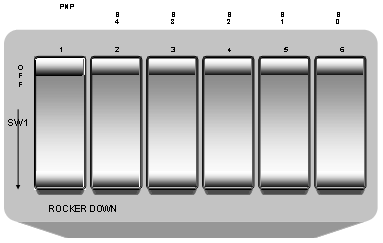
DIP Switch for Setting I/O Address
GTXI platforms have virtually unlimited I/O address space because each GTXI Carrier has its own offset address. Therefore GT5900 boards in a GTXI system can function, even if set to the same base address, as long as each GTXI Carrier has a unique offset address.
The actual Carrier address for a GT5150/5151 or GT5900 boards is determined by switch positions through a look-up procedure. The table below shows pre-assigned base addresses. Switch positions use ON for “0” and OFF for “1” (Rocker Down).
Hex Base Address |
Switch Setup S[4-3-2-1-0] |
Hex |
Switch Setup S[4-3-2-1-0] |
100 |
1-1-1-1-0 |
300 |
0-1-1-1-0 |
110 |
1-1-1-0-1 |
310 |
0-1-1-0-1 |
120 |
1-1-1-0-0 |
320 |
0-1-1-0-0 |
130 |
1-1-0-1-1 |
330 |
0-1-0-1-1 |
140 |
1-1-0-1-0 |
340 |
0-1-0-1-0 |
150 |
1-1-0-0-1 |
350 |
0-1-0-0-1 |
180 |
1-1-0-0-0 |
380 |
0-1-0-0-0 |
190 |
1-0-1-1-1 |
390 |
0-0-1-1-1 |
200 |
1-0-1-1-0 |
700 |
0-0-1-1-0 |
210 |
1-0-1-0-1 |
710 |
0-0-1-0-1 |
220 |
1-0-1-0-0 |
720 |
0-0-1-0-0 |
230 |
1-0-0-1-1 |
730 |
0-0-0-1-1 |
240 |
1-0-0-1-0 |
740 |
0-0-0-1-0 |
250 |
1-0-0-0-1 |
750 |
0-0-0-0-1 |
280 |
1-0-0-0-0 |
780 |
0-0-0-0-0 |
290 |
0-1-1-1-1 |
Not used |
1-1-1-1-1 |
Carrier Base Address Setting
In order to use an address starting with 7 (7XX), the corresponding address starting with 3 (3XX) must be assigned to a DIO or Carrier board and not used by another ISA board.
Note: The “PNP” DIP Switch position (Figure DIP Switch for Setting I/O Address) is intended for drivers that support Plug ‘n Play. The current driver does not support Plug ‘n Play. Currently, this switch must be ON (Plug ‘n Play not selected) or the board may not initialize properly.
Check the README.1ST file on your installation diskette. If Plug ‘n Play is supported, enable it by turning the PNP switch to OFF (active position) and skip the switch setup. The base address is set by a DIP switch the same way the G5150 base address is set. See the subsection below for a list of valid addresses.
The figure DIP Switch for Setting I/O Address showed two I/O module insertion areas, (IOC 1 and IOC 2). I/O modules are usually factory mounted; however, you may change modules to meet different needs.
Up to two I/O Modules are mounted in accordance with I-O Modules. To dismount a module, just reverse the PC procedure.
PC Chassis
Insert the Carrier into a vacant PC ISA slot firmly, but not forcefully. Make certain it is seated evenly. Secure the edge bracket with the retaining screw.
GTXI/GT7700Chassis
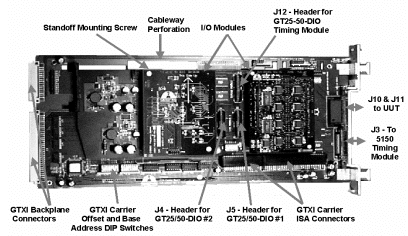
To insert the Carrier into a GTXI/GT7700 environment, it must first be mounted on a GT7020 ISA (GTXI-type) Carrier. Figure Carrier GTXI Installation displays a GT5900 containing two I/O modules. It is mounted on a GTXI Carrier.
A GT7020 fills a GTXI ISA backplane slot. UUT and GT5150 Timing connectors are available at the GT7020’s front panel.
GT5900 header ribbon cables are dressed through a space on the lower front panel. These connect to a GT25/50-DIO front panel connector (data or timing ports).
Enabling the Board
After the Carrier is physically installed, it must be configured by the software for it to be identified by the system and initialized. In order to do this, DIO software must be installed. See the "Software User's Guide" for software installation instructions.
The DIO Panel software runs in 16- or 32-bit versions. If accessed from DIOEasy, only the 32-bit version loads.
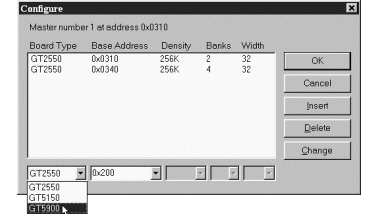
GT25/50-DIO Panel Configuration Window
When the software installation is completed, do the following to configure and initialize the new boards:
1. Double-click the 16- or 32-bit Panel icon to open the GTDIO Panel. It can also be loaded in DIOEasy by pressing F10. The DIO Panel window opens.
2. Use the Master combo box in the upper left corner of the Panel to select a Master DIO. This determines the domain where the Carrier will reside.
3. Click Configure… The Configure window opens (see figure GT25/50 DIO Panel Configuration Window).
4. Select a GT5900 in the Board Type combo box.
5. Set the Base Address that was set on the DIP switch in the Base Address combo box.
Note: The base address can be entered in hex or decimal format. Type the numeric value for decimal. For hex, type 0xnnn where nnn is the hexadecimal address (for example, decimal 784 or hex 0x310 are equivalent).
6. Click Insert to add the new board to the configuration table. The new GT5900 board now displays in the board list (Figure below
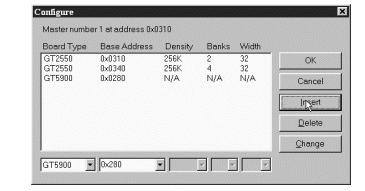
DIO Panel Window
7. Configure additional GT5900 boards as needed. Click OK to exit and save the board configurations. You can also click Delete to remove a board from a domain or click Change to update parameters of a configuration.
8. Click Initialize! in the Panel to accept the configuration.
9. Reconfigure whenever you add, delete or change boards.
Connecting to the System
Refer back to the Carrier block diagram of Figure GT5900 Carrier Configuration.
All GT5900 headers and connectors terminate at either DIO or UUT connectors. Connections are discussed below.
The I/O board at IOC 1 connects to a GT25/50-DIO board via 50-pin header J5, and to a UUT via 68-pin VHD connector J11.
The I/O board in position IOC 2 connects to a GT25/50-DIO board via 50-pin header J4, and to a UUT via 68-pin VHD connector J10.
Special connections exist for the DIO Carrier timing interface. Header J12, and 68-pin VHD connector J3, cable to GT25/50-DIO and GT5150 Timing modules, respectively. IOC 1 handles timing ports. J10 can be used for either UUT data or timing.
PC DIO Connections
Carrier boards connect to GT515X DIO boards by a cable between the rear brackets. GT515X VHD connectors are mounted on both rear brackets.
For GT25/50-DIO boards, header cables are dressed through an opening in the lower left corner of the GT5900 end bracket at J3 (Figure GT5900 Carrier Board). A cable connects the Carrier header to a 50-pin, high-density rear bracket connector.
GTXI/GT7700 DIO Connections
PC boards must first be mounted on GT7020 ISA Carriers. Each DIO board is flip-mounted on the Carrier so that connectors and ribbon cables port through the front panel. GT5900 header cables are dressed through an opening in the lower left corner of the GT5900 end bracket (J3 of Figure GT5900 Carrier Board), then through the opening in the front panel of the GTXI/GT7700 chassis. The DIO Carrier cables cross the front panel and terminate at DIO connectors that are mounted on other ISA Carriers containing DIO boards.
