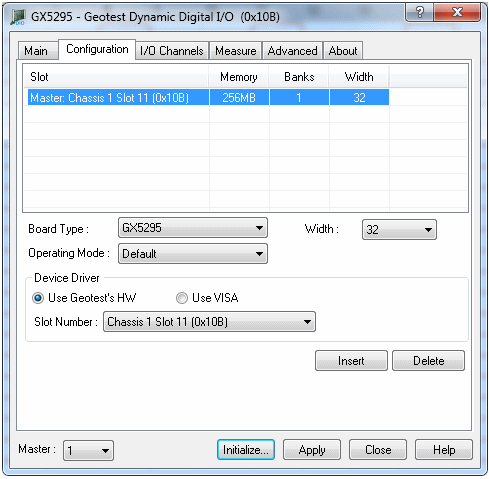
The Configuration tab dialog supports two different device drivers that can be used to access and control the board
Double click the GT-DIO Panel icon or open the Panel in DIOEasy (press F10 or select it under the Windows menu). The DIO Panel window opens (see Virtual Panel I-O Channels Settings Page), and then Click on the Configuration tab.
Configuration window Displaying GX5290 board
The Marvin Test Solutions’s HW Device Driver installed by the setup program and is the default driver. When selected, the Slot Number list displays the available boards installed and their slots. The chassis, slots, devices and their resources are also displayed by the HW resource manager, PXI/PCI Explorer applet that can be opened from the Windows Control Panel. The PXI/PCI Explorer can be used to configure the system chassis, controllers, slots and devices. The configuration is saved to PXISYS.INI and PXIeSYS.INI located in the Windows folder. These configuration files are also used by VISA.
Use VISA – this is a third party device driver usually provided by National Instrument (NI-VISA). When selected, the Resource list displays the available boards installed in the system and their VISA resource address. The chassis, slots, devices and their resources are also displayed by the VISA resource manager, Measurement & Automation (NI-MAX) and in Marvin Test Solutions PXI/PCI Explorer. The following figure shows PXI9::13::INSTR as the VISA resource (PCI bus 9 and Device 13). This is VISA resource string argument (szVisaResource) passed by the panel when calling the driver DioSetupInitializationVisa function to initialize the driver with the specified board.
The following describes how to configure a DIO domain using Marvin Test Solutions’s HW Device Driver (the process is the same when either using Marvin Test Solutions’s HW Device Driver or VISA).
Note: when the Configuration tab dialog is selected it will fill the list with the current stored configuration for the specified Master number.
1. If you want to delete the current configuration select the first line (which always points to a Master) and click Delete.
2. Select the board family type From the Board Type dropdown list. The panel will scan your system and fill the Slot Number dropdown list with all the matching boards’ with their slot resource numbers and designation as Master or Salve. If none were found the list box will display "No board was found"
3. From the list select the Master and click Insert (the Master board has to be first in the list). The new board appears with the entered parameters. The user can select/change the width and direction of the currently selected board in the list.
4. Add additional Slaves if needed.
5. To delete board configuration, select it and click Delete. The board is no longer display in the list.
The figure Configuration window Displaying GX5290 board shows a Gx5290 Master board at slot number 0x10A (chassis 1 Slot 10) with two Salves. This is the same slot number argument (nSlot) passed to the driver when calling DioSetupInitialization function used to initialize driver with the specified board.
To check that the configuration is OK simply click Initialize button to initialize all the board in the configuration list. Each board in the list should now has the memory size and number of banks, as well as the Panel’s caption display the Master’s slot number.
This figure shows the DIO domain initialized with each board displays its memory size and number of banks. The Panel’s caption displays the Master’s slot number.