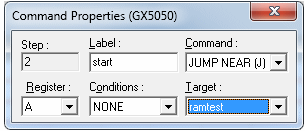
The next procedure programs commands using the Command Properties dialog box.
Use this dialog box to select a Command, add a step Label, and specify a Register, Conditions and jump Labels for flow control.
You can open this dialog box by first clicking anywhere in a Vector View step, then select Command Properties from the View menu or press Alt + Enter. The easiest way is to double-click the Command Bar at the step.
The Command Properties dialog box always displays Step, Label and Command fields (figure below). Depending on the Command selected, additional fields can display. These are Register, Conditions and Target. These additional fields are used to enter modifiers that reference a specific register, condition or target label.
Adding Commands and Labels
Command properties are stored and displayed on the Command Bar when the mouse is clicked outside the Command Properties dialog box (that is, when the dialog box loses focus).
The following describes how to enter commands and properties called for in the table Initializing the Counter:
1. Select Step 0. Open the Command Properties dialog box and type cntinit in the Label field.
2. Select Step 3. Open the Command Properties dialog box. Select SET from the Command list. Select A from the Register list and leave the Value at ‘0’. No label is required for this step.
3. Select Step 7. Open the Command Properties dialog box and select SET from the Command list. Select B from the Register list and type in a Value of 4.
4. Select Step 8. Open the Command Properties dialog box and type loopinit in the Label text box.
5. Select Step 20. Open the Command Properties dialog box and type the ramtest in the Label text box. This label must be defined for the command in Step 11.
6. Select Step 11. Open the Command Properties dialog box and select JUMP NEAR (J) from the Command list. Select = (E) (Equal) from the Conditions list and select register A. Select RAMTEST in the Target list. (Table Testing the D Flip flop).
7. Select Step 14. Open the Command Properties dialog box. Then select LOOP from the Command list and B from the Register list (“Condition” should be set to None). Label with loopinit.
8. Select Step 19. Open the Command Properties dialog box and select HALT from the Command list.
9. Continue filling data and entering labels as specified in the table Initializing_the_Counter, table Writing to RAM, table Reading from RAM through table Testing the D Flip flop.
The figure below shows the Vector View window after commands and labels are inserted.
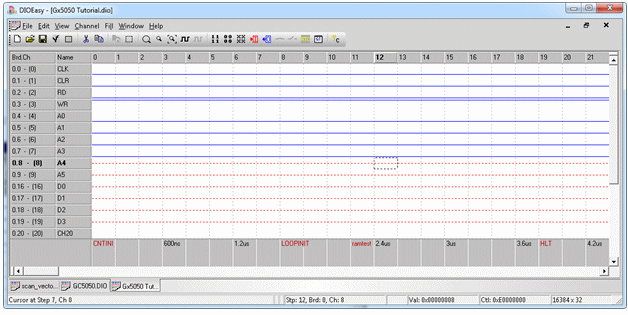
Vector View after Adding Commands