OverviewThe article shows how to use Claude AI to create an ATEasy IOTable based Driver from an instrument User's Guide (pdf) with SCPI programming section.
Claude (by Anthropic) can write complete, production-quality ATEasy instrument drivers when given the right reference materials. This guide explains exactly what to upload, what to ask, and what to expect — so any engineer on the team can generate a new driver in minutes rather than days. The conversion is not perfect and Claude need more example to provide better conversion. It is advised that after the driver is created by Claude, go over all command and make sure they are correct (especially parameter types). MTS will continue to add examples and documentation of ATEasy in our website so that AI tools can have better understating of the ATEasy programming language and the ATEasy text file format for Project, System, Driver and Program.
Important:** Claude does not remember previous conversations. Every new chat session starts fresh. This means you must upload the reference files at the start of every new session. This guide tells you exactly which files to upload and in what order. Future version of Claude may be able to generate the driver and example without Claude training and references provided here. The training here was done using Sonnet 4.6 and ATEasy 2026 /14.0.
What You Will Need Before StartingDownload these files this article and keep them in a folder on your desktop (File - Purpose):The instrument SCPI manual is the most important file — it is the source of all SCPI commands Claude will use to build the driver. You can usually download it from the manufacturer's website (Keysight, Rohde & Schwarz, Tektronix, National Instruments, etc.).
Step-by-Step Instructions- Step 1 — Start a New Claude Conversation
Go to Claude.AI: (https://claude.ai) and start a new chat. Use Claude Sonnet or Claude Opus for best results.
- Step 2 — Upload the Reference Files
Click the paperclip (attachment) icon and upload all of the following files **at the same time** in your first message:
1. `ATEasy_Driver_Authoring_Guide.md`
2. `KeysightN6900N7900.drt`
3. `KeysightN6900N7900.syt`
4. `KeysightN6900N7900.pgt`
5. `KeysightN6900N7900.pjt`
6. The instrument SCPI manual PDF (9018-03911.pdf)
Then send this message:
> Please read all the uploaded files carefully. The `.md` file is an ATEasy driver authoring reference guide. The `.drt`, `.syt`, `.pgt`, and `.pjt` files are a complete working example of an ATEasy driver project. The PDF is the SCPI programming manual for the instrument I want you to write a driver for. Study all of these before I give you instructions.
Wait for Claude to confirm it has read and understood the files.
- Step 3 — Request the Driver
Once Claude confirms it has read the files, send your driver request. Be specific about:
- The **exact instrument model number**
- The **DefaultName** you want (e.g. `DMM`, `PS`, `SG`, `SA`, `OSC`)
- Whether it supports **GPIB, USB, and/or LAN**
- Any **specific commands or features** you want prioritized
**Example request:**
> Please write a complete ATEasy 14.0 driver for the Keysight 34465A 6.5-digit DMM following all the conventions in the reference guide and matching the style of the example driver. The DefaultName should be DMM. The instrument supports GPIB and USB. Please include all measurement functions: DCV, ACV, DCI, ACI, 2-wire resistance, 4-wire resistance, frequency, period, capacitance, diode, continuity, and temperature. Use only Procedures with SendString — no IoTables for instrument commands. Name the output file Keysight34465A.drt.
- Step 4 — Request the Example Project Files
After Claude delivers the driver, ask for the matching example project files:
> Now please create the four matching example project files for this driver:
> 1. `Keysight34465A.drt` — already done
> 2. `Keysight34465A.syt` — system file registering the DMM on GPIB address 22
> 3. `Keysight34465A.pgt` — program file with tests covering all major measurement functions
> 4. `Keysight34465A.pjt` — project file tying everything together
- Step 5 — Review and Iterate
Download the generated files and review them in ATEasy. If you find issues, paste the specific problem back into the chat and ask Claude to fix it. For example:
> The procedure SetRange() should be named SetInputRange() to match the command path "Set Input Range". Please fix this and regenerate the driver.
Claude will correct the issue and deliver an updated file.
Load the project in ATEasy 14.0/2026:
1. Open ATEasy and select **File ? Open Project**
2. Navigate to the folder containing your four files and open the `.pjt`
3. In the System module, verify the driver address matches your bench setup
4. Run the example program to verify communication with the instrument
5. If the IDN check fails, confirm the instrument is powered on and the address is correct
Tips for Best Results- Be specific about the instrument.** Include the full model number (e.g. `34465A` not just `34400 series`). Claude uses the model number to identify the correct SCPI commands in the manual.
- Upload the actual SCPI manual.** A datasheet is not enough. Claude needs the full programming/SCPI reference guide with the complete command syntax. These are usually available free from the manufacturer's website as PDFs titled "Programming Guide" or "Programmer's Reference."
- Specify the DefaultName early.** The DefaultName determines how every command is called in the test program (e.g. `DMM Measure Voltage DC(TestResult)`). Use the conventions:
- `PS` — Power Supply
- `DMM` — Digital Multimeter
- `SG` — Signal Generator
- `SA` — Spectrum Analyzer
- `OSC` — Oscilloscope
- `SW` — Switch/Matrix
- `LCR` — LCR Meter
- `LD` — Electronic Load
- Name all models the driver covers.** If the SCPI manual covers a family of instruments (e.g. 34460A, 34461A, 34465A, 34470A), ask Claude to include all models in the `Models` block and name the file accordingly (e.g. `Keysight3446x.drt`).
- Ask for commands in priority order.** If the instrument has many subsystems, tell Claude which are most important. For example: *"Focus on output control, basic measurements, and protection. The ARB and List subsystems are less important for now*
- If Claude makes a mistake, correct it clearly.** Paste the incorrect section and explain the rule it violated. Claude will apply the correction correctly and remember it for the rest of that session.
Common Issues and How to Fix ThemIssue - How to Fix (prompt for Claude)- Procedure name doesn't match command path - Tell Claude: *"The procedure name must match the full command tree path. `SetRange()` should be `SetInputRange()` because the command is `Set Input Range`."
- Enum not declared Public - Tell Claude: *"All enums must be declared `Enum Public`."
- Measure commands nested under Get - Tell Claude: *"Measure and Fetch must be top-level command nodes, not nested under Get.
- IoTables used for instrument commands - Tell Claude: *"All instrument commands must be Procedures using SendString. Remove the IoTables and replace them with Procedures."
- Wrong interface blocks - Tell Claude: *"This instrument supports GPIB, USB, and LAN. Please add all three interface blocks following the patterns in the reference guide."
- Underscores in procedure or enum names - Tell Claude: *"No underscores are allowed in procedure names, enum names, or command names. Please remove all underscores."
What Claude Will ProduceFor a typical instrument driver, Claude will generate files containing:
- Full Summary block with all models, SkipOnInit parameter, and documentation
- Interface blocks (GPIB, USB, LAN) as the instrument supports
- All enums as Public with descriptions
- Complete hierarchical Commands tree
- OnInit event with SkipOnInit pattern
- Initialize procedure with interface and IDN verification
- All instrument commands as Procedures using SendString
- Four utility IoTables only (SendString, ReceiveDouble, ReceiveLong, ReceiveString)
- Driver registered with correct DefaultName and path
- Select one GPIB/LAN/COM interface type and address
**Program file (`.pgt`):**
- One task with tests covering all major instrument functions
- Setup test: reset, configure, enable
- Measurement tests: one per measurement type using `TestResult`
- Cleanup test: disable/safe state
- System and program paths linked
- StartProgram set correctly
- ExeVersionInfo populated
Quick Reference CardFiles to upload every session
ATEasy_Driver_Authoring_Guide.md
KeysightN6900N7900.drt
KeysightN6900N7900.syt
KeysightN6900N7900.pgt
KeysightN6900N7900.pjt
<instrument_scpi_manual>.pdf
Starter prompt:
>Please read all uploaded files. The .md is the ATEasy driver authoring guide.
The .drt/.syt/.pgt/.pjt are a complete reference example. The PDF is the SCPI
manual for the instrument I need. Study all files, then I will give you the
driver request.
Claude Driver Request Template:>Write a complete ATEasy 14.0 driver for the [MANUFACTURER] [MODEL] [INSTRUMENT TYPE]
following all conventions in the reference guide and matching the style of the
example driver.
- DefaultName: [PS / DMM / SG / etc.]
- Supported interfaces: [GPIB / USB / LAN]
- Key functions to include: [list the main capabilities]
- File name: [InstrumentName.drt]
Also generate the matching .syt, .pgt, and .pjt example files.
Screenshot of Claude AI Generated Files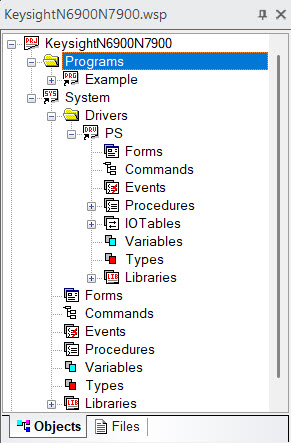 ATEasy Workspace Showing Project, Program, System and Driver Created ATEasy Workspace Showing Project, Program, System and Driver Created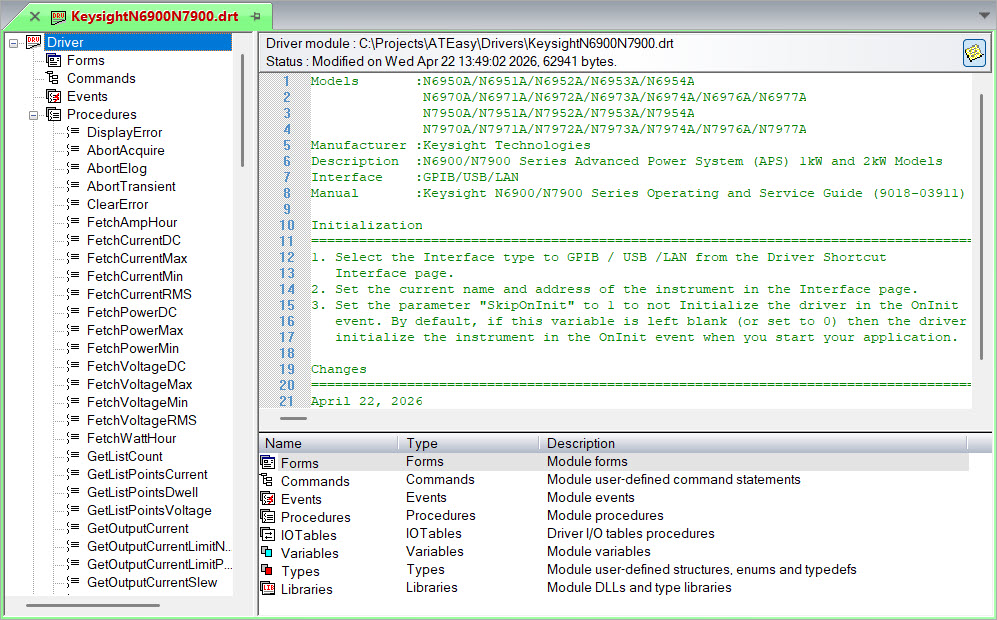 ATEasy Driver Description ATEasy Driver Description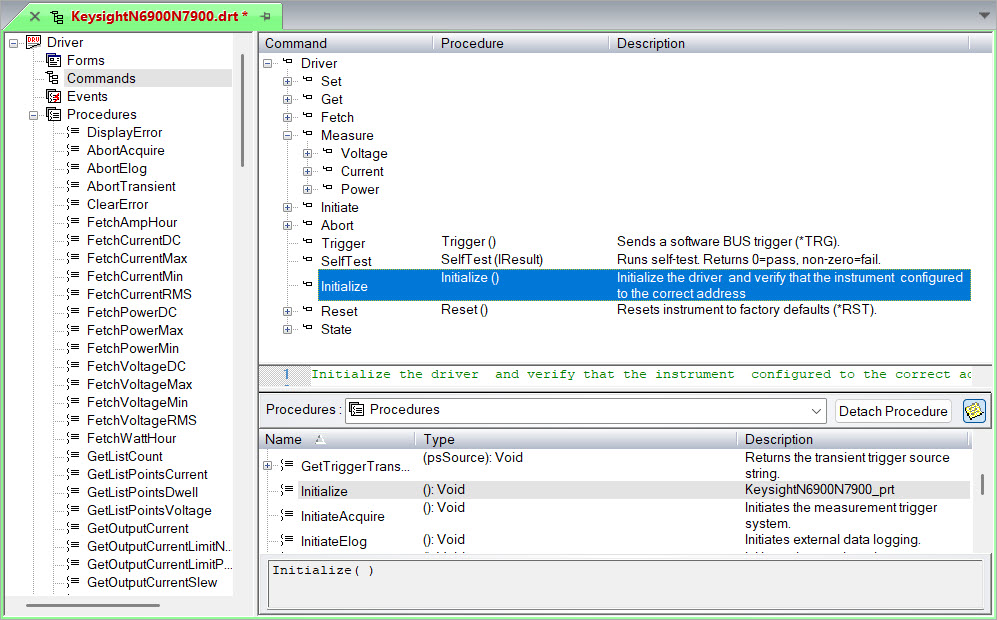 ATEasy Driver Commands ATEasy Driver Commands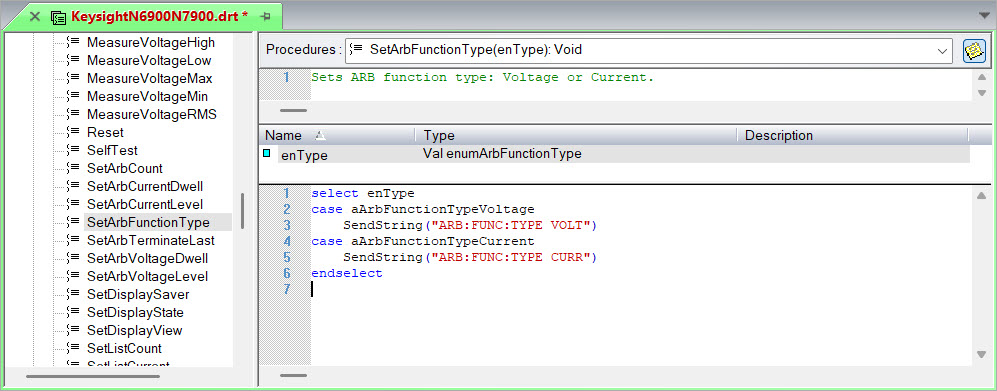 ATEasy Driver Procedures ATEasy Driver Procedures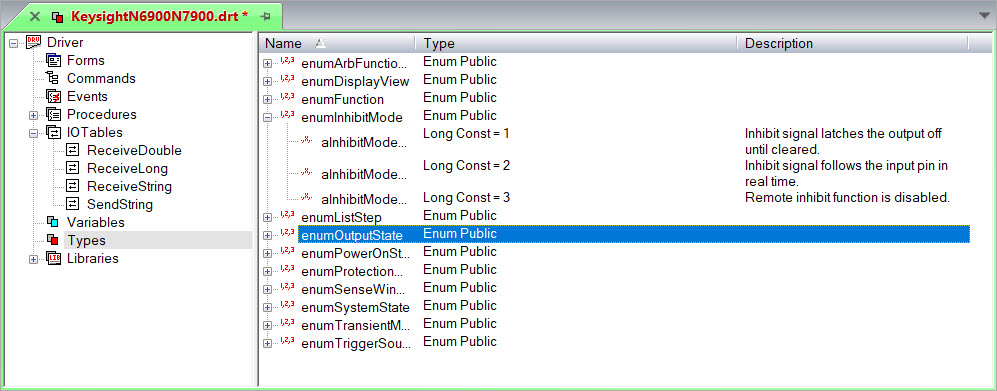 ATEasy Driver Enums ATEasy Driver Enums
All Example Files in a single zip file:  Q200367.zip Q200367.zip
|